

Imagine being able to converse fluently with someone who doesn't speak your language, all with just your Android phone. Google Assistant's interpreter mode has transformed how we connect in an increasingly globalized world, allowing the language barrier to crumble in seconds. You no longer need to be a polyglot or rely on specialized devices to translate conversations in real time: all you need is your Android phone, Google Assistant, and a few simple steps.
In this article, you'll find everything you need to know about Interpreter Mode on Android : what it is and how it works, which devices support it, compatible languages, a detailed guide with activation examples , tips for getting the most out of it, and helpful advice if you encounter any issues. You'll also discover additional features that set it apart from the competition and find answers to all your questions without having to consult any other website.
What is Google Assistant Interpreter Mode and what does it do?

Interpreter Mode is a built-in feature of Google Assistant that acts as a two-way conversation translator , specifically designed to facilitate verbal communication between people who speak different languages. The tool provides real-time translations of everything said during a dialogue, allowing both parties to understand and actively participate regardless of their native language. It's a convenient and efficient solution for travelers, professionals attending international meetings, students, or anyone who wants to understand and be understood in another language naturally and easily.
How does it work? By activating Interpreter Mode, Google Assistant listens to and recognizes both what you say and what the other person replies. The assistant translates the message and reads it aloud in the desired language, also displaying the text transcription to ensure better understanding. You can use it by dictating using the microphone or, if needed, by entering the text using the keyboard.
There are three main ways to interact with this tool :
- Automatic mode: The assistant automatically detects the language of each interlocutor and performs direct translation, facilitating quick and fluid conversations.
- Manual mode: Each participant presses a button (or an on-screen option) when they are ready to speak, so the system only activates the microphone for that person, which is useful in noisy environments or when there are more than two people nearby.
- Keyboard Mode: Allows you to type the text you want to translate, ideal for situations where there is a lot of ambient noise or pronunciation is difficult for the assistant.
Key advantages : It doesn't just translate single phrases like Google Translate, but is optimized for interpretation in real conversations, eliminating the need for specialized devices and offering a free, accessible, and easy-to-use experience anytime.
Devices Supported in Interpreter Mode

Interpreter mode has become a cross-platform feature, available for a wide variety of devices with Google Assistant built-in . You can take full advantage of it in:
- Mobile phones y Android tablets (with updated Google Assistant).
- Devices iOS with the Google Assistant app.
- Google Home Smart Speakers and other speakers with support for Google Assistant.
- Smart screens such as Google Nest Hub and other compatible models.
- Smart alarm clocks with Google Assistant.
Important: To ensure proper functioning, make sure you have the latest version of the Google Assistant app installed on your device. On phones and tablets, the experience is more complete, as you'll be able to see the written transcript and access more languages. On some speakers and displays, there may be slight limitations in the number of supported languages or in the way you interact.

Languages Available in Interpreter Mode
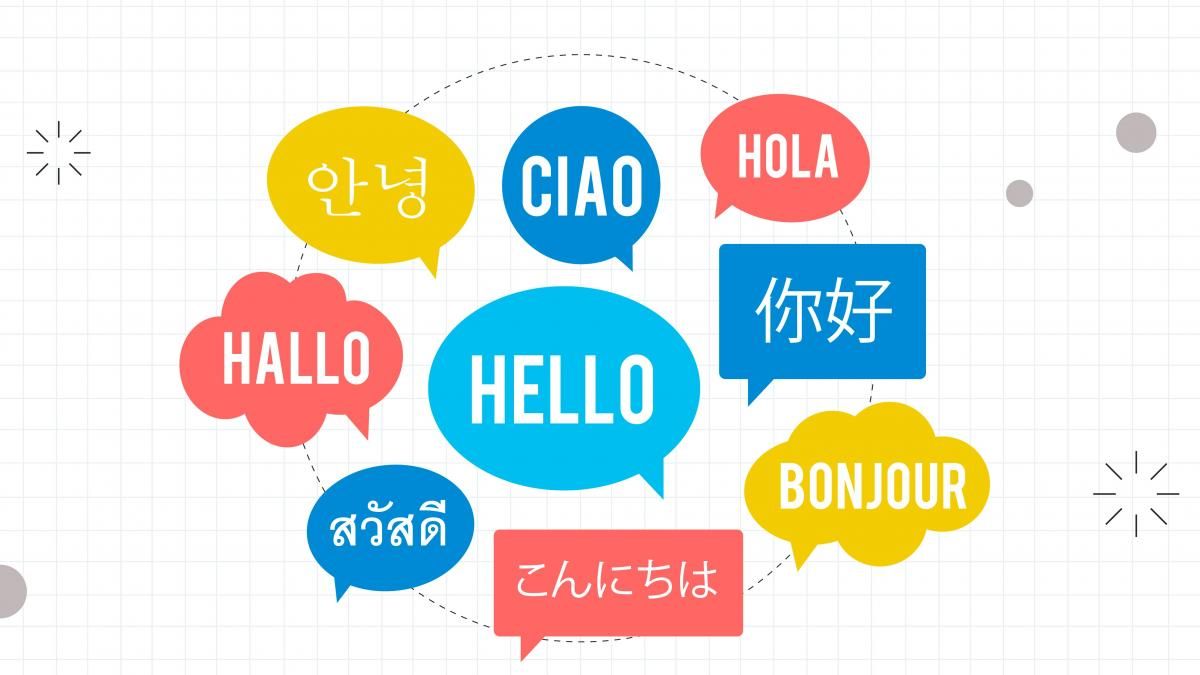
One of the most outstanding features of Interpreter Mode is its extensive language support . It's based on the same technology as Google Translate, allowing translation between dozens of languages. Among the main supported languages are:
- Spanish, English, French, German, Italian
- Portuguese, Russian, Dutch, Polish, Arabic
- Chinese (Mandarin), Japanese, Korean
- Catalan, Galician, Basque
- And many others such as Burmese, Malayalam, Swedish, Czech, Turkish, among other less common ones
The specific list may vary slightly depending on the device and region. Mobile phones and tablets typically have the most extensive list , while speakers and displays may be limited to the most popular languages. To check which languages are available on your device, simply launch interpreter mode and consult the language selection menu.
Another advantage is the ability to translate conversations between any two languages ; it doesn't have to be just the system language or your phone's language. This can be specified directly in the activation command.
How to Enable Interpreter Mode on Android: Step-by-Step Guide

Starting interpreter mode on Android is very simple, just follow these steps:
- Activate Google Assistant with the command "Ok Google" or by holding down the home button or the microphone icon in the Google app.
- Say one of the activation commands:
- “Be my English interpreter”
- “Interprets from Spanish to French”
- “Italian interpreter”
- “Activate interpreter mode”
- In any command you can specify both languages if you wish (for example, “Interpret from Polish to Dutch”).
- Select languages if the command doesn't define them or if you want to change them from the on-screen menu.
- As soon as you hear the tone, Start talking and the assistant will automatically translate your message into the other language you've chosen. The result will appear as text and, on many devices, will also be spoken aloud.
- When you're done, just say "Stop" o "Leave" to end interpreter mode.
Tip: The commands can be adapted to your needs, so feel free to try different phrases like "Translate to Japanese" or "Help me speak German."
On smart speakers and displays, activation is just as straightforward, but you'll need to do it by voice; not all models allow text input via keyboard.

Tips and Tricks to Take Advantage of Interpreter Mode

- Speak clearly and at a good pace: Speaking slowly and vocalizing helps Google Assistant better understand what you say, avoiding mistranslations.
- Eliminate background noise: The quieter the environment, the more accurate the interpretations will be.
- Wait for the signal before speaking: Make sure the device has detected your voice before you start speaking to avoid cutting off your sentence.
- Quick language switching: You can change the languages you select during a conversation from the graphical interface, without having to log out and back in.
- Group management: If there are more than two people speaking, use manual mode so that the microphone only intervenes when the button is pressed, thus avoiding confusion.
- Keyboard for difficult cases: If voice recognition fails due to an accent, noise, or language difficulties, use the keyboard mode to type your message and get an accurate translation.
- Integration with other apps: On some mobile devices, you can copy translated text to use in messaging apps, email, or social media, facilitating written multilingual communication.
How to Troubleshoot Common Interpreter Mode Problems

Occasionally, interpreter mode may fail or not work as expected. Here are some helpful tips to resolve this issue:
- Check the update: Make sure you have the latest version of the Google Assistant and the Google app installed on your device. If you have a very old version, some features may be limited.
- Confirm compatibility: Some older models or older versions of Android may not support interpreter mode. Check your device's specifications on Google's website.
- Pronounce the commands clearly: If the assistant doesn't respond, try saying "Ok Google" and then "Turn on interpreter mode," avoiding fillers or interruptions.
- Restart the app or device: If interpreter mode doesn't start, sometimes it's enough to close and reopen Google Assistant, or restart your phone.
- Check the internet connection: Interpreter mode requires an internet connection to work properly. A slow network may delay or prevent translation.
- Set the system language: In rare cases, changing the device's primary language and restarting may resolve recognition issues.
- Turn off power saving: Some functions may be limited when battery saving mode is activated on your phone.
Frequently Asked Questions and Service Changes

- Is interpreter mode free? Yes, it's completely free for all users with compatible devices and access to the Google Assistant.
- Does it work without an internet connection? At present, requires internet connection to work, since translations are done in the Google cloud.
- Can it be used on Samsung, Xiaomi, etc. devices? Yes, any Android phone with an updated Google Assistant can use it, regardless of the brand.
- Is interpreter mode available in all countries? Availability depends on region and language settings, but most countries and modern Android devices already include it.
- Can written phrases be translated? Yes, Keyboard mode allows you to enter text for translation, which is very useful when pronunciation or noise makes it difficult to understand.
- Can more than two languages be translated at once? For now, interpreter mode is designed to handle a conversation between two languages. If you want to switch languages, you can do so during the conversation without having to exit.
- What happens if the feature becomes unavailable? Google is constantly making changes and improvements. If interpreter mode ever disappears from your Assistant, you can still use Google Translate for quick translations of phrases or words.
Thanks to Google Assistant's interpreter mode, multilingual communication is at your fingertips. Whatever the environment, there are no more excuses for not understanding or being understood. Experience the freedom of being able to converse with anyone, anywhere, anytime, without language being an obstacle. Try all its options and discover how far your conversations can take you!

Table of Contents
- 1 What is Google Assistant Interpreter Mode and what does it do?
- 2 Devices Supported in Interpreter Mode
- 3 Languages Available in Interpreter Mode
- 4 How to Enable Interpreter Mode on Android: Step-by-Step Guide
- 5 Tips and Tricks to Take Advantage of Interpreter Mode
- 6 How to Troubleshoot Common Interpreter Mode Problems
- 7 Frequently Asked Questions and Service Changes