

Digital transformation has fundamentally changed how we manage procedures and services with both public administrations and private companies. A key advancement in this process is the digital certificate , essential for verifying your identity and signing electronic documents from any device. And the best part is that you no longer need a computer : today you can request, download, and install the digital certificate from your mobile phone , whether it's an Android or iPhone, without unnecessary travel or waiting.
This comprehensive guide contains all the information, specific steps, recommendations, and answers to frequently asked questions so you can learn how to request a digital certificate from your mobile phone using all available options: video identification, reading the chip on your electronic ID card (DNIe/NIE), or in person. We'll also answer all your questions about compatibility, requirements, and practical use of the digital certificate on your smartphone, expanding the content with key details from the best official sources and specialized guides.
What is a digital certificate and what is it for?

A digital certificate is a unique electronic document that identifies you to public bodies or private companies in the digital environment. Technically, it's a secure file that links your personal data to a cryptographic key and that only you can use with a password. This file is issued by the Spanish Royal Mint (FNMT) and can be installed on computers, mobile phones, and tablets.
Having a digital certificate installed on your mobile phone allows you to:
- Identify yourself online in official procedures without having to go to a physical office.
- File taxes or check traffic fines at the Tax Agency.
- Sign documents and forms electronic devices with legal validity.
- Access your work and medical history in Social Security, INSS and other public entities.
- Apply for aid and subsidies, register in the municipal register, consult the municipal register.
- Consult and carry out banking procedures or with private entities that require a robust digital identity.
- Use apps like My Citizen Folder, my DGT, Digital Health and more.
The digital certificate replaces your physical ID card, providing you with a secure digital identity and allowing you to sign and verify any transaction from the palm of your hand.
Who can apply for a digital certificate from a mobile phone?

Any individual of legal age (or an emancipated minor) , whether Spanish or foreign, can obtain the digital certificate as long as they have a valid DNI or NIE.
- It doesn't matter if your phone is Android or iOS: The official FNMT app is available for both systems.
- You must have your own email address and mobile phone number, as FNMT communication is always personal and secure.
- You will need a physical ID or NIE (just the number is not enough).
- Optionally, if you request the certificate with the DNIe chip, you will require a mobile phone compatible with NFC technology.
There are no residency restrictions: you can apply even if you live abroad if you have valid documentation and access to the official FNMT apps.
Options available to request the digital certificate from your mobile phone

The FNMT has optimized the process so you can get your digital certificate on your mobile phone through three main methods :
- Video identification (remote identity verification without having to travel).
- Reading the DNIe/NIE chip using NFC.
- In-person identity application (combining the app and an office).
Plus, if you already have a valid digital certificate on another device, you can easily transfer and install it on your phone, taking advantage of the backup. Let's explore each option step by step, including practical details, requirements, and tips from official sources and experts.
1. Request the digital certificate on your mobile phone with video identification

The most accessible way to obtain a digital certificate without traveling is through video identification . The process is simple, convenient, and suitable for most users, even those without prior experience.
- Download the official app “FNMT Digital Certificate” from Google Play Store or App Store.
- Open the app and select the option “Request Digital Certificate”.
- Choose “Video identification”Please note that this service carries a cost of €2,99 + VAT; the certificate, however, is free.
- Enter the personal information requested: DNI/NIE, first surname and your email address valid.
- Confirm your email using the link you'll receive. Then, provide your mobile number (you will receive a verification SMS).
- The app will guide you to Activate the camera and record your face along with your DNI/NIE. Follow the instructions to ensure a clear recording.
- Within a maximum of two business days (usually less), you will receive an email indicating whether your application has been approved.
- If everything is correct, Download and install the digital certificate on your mobile phone.
Tips for video identification:
- Find a well-lit, quiet place to record.
- Clearly display your DNI/NIE next to your face, frontally and legibly.
- Please verify that your camera and microphone are working properly before starting.
- You'll need to make your payment through the app itself (credit/debit card or other compatible payment methods).
This system is ideal if you don't want to or can't go to a physical office , and you also don't have a terminal with NFC.

2. Request the digital certificate by reading the DNIe/NIE chip (via NFC)
If you have a mobile phone with NFC and your electronic ID card (DNIe/NIE) is up to date (with a chip), you can obtain the digital certificate quickly and 100% digitally:
- Download the “FNMT Digital Certificate” application.
- In the app, tap “Request Digital Certificate” > “DNIe Reading”.
- Accept the terms and conditions and verify your email using the link provided.
- Enter the requested DNIe data: CAN (six-digit number in the lower right corner of the DNI), and the PIN password provided when renewing the DNI at the police station (usually comes in a sealed envelope).
- Place your ID on a flat surface and place the back of your phone directly over the chip. Make sure both devices are touching and don't move your phone during the reading.
- Follow the prompts: the app will read the chip, verify your information, and allow you to download the digital certificate, which will be saved directly to your mobile device.
Advantages and recommendations:
- This method is automatic, safe and does not entail any cost some.
- NFC reading may fail if there are metal cases or if the contact is inaccurate. If this happens, remove the case and repeat the procedure carefully.
- You must know and remember your DNIe/NIE PIN. If you forget it, you can renew it at the self-service machines available at police stations.
With this system, the entire process is completed in just a few minutes, without waiting or recording.
3. In-person application for a digital certificate (combining app and office)

You can start the process in the app and complete it in person. This is the best option if you don't have NFC, don't want video identification, or prefer the security of physical validation.
- Download and install the official app.
- Request the digital certificate and select “In-person application”.
- Complete the required information: DNI/NIE, first surname, and email. Check your email and follow the confirmation link you'll receive.
- The app will provide you with a Request code or with a unit’s QR code.
- Go to an authorized registry office (AEAT, Social Security, town halls, official bodies) and present the QR code and your DNI/NIE. Make sure to ask for it. appointment if necessary (most offices require it).
- After in-person validation, download the certificate from the app and follow the installation steps.
This system is suitable for those who don't have NFC or video calling capabilities, as well as for those who distrust digital systems and prefer personal contact.
How to install and manage the digital certificate on your mobile phone?

After applying and receiving approval, it's time to install the certificate on your smartphone and learn how to manage it securely. The process varies slightly between Android and iOS, but it's quick and easy.
Install digital certificate on Android
On Android, the certificate is usually delivered in .p12 or .pfx format . To install it, you can consult the step-by-step guide for installing a digital certificate on a Xiaomi phone and other Android devices, which simplifies the entire process.
- Copy the file to your mobile (via USB, email, Google Drive or AirDrop).
- Open the Settings > “Security and privacy” > “More security settings”.
- Select “Credential Storage” > “Install from Storage” or “Install from SD Card.”
- Find and select the .p12/.pfx file, enter the password provided when generating it, and give it a name (without spaces).
- Choose “VPN & Apps” as the certificate usage.
- You can manage certificates from this same menu, delete them, or make additional backups.
At the end, your certificate will be active and available to identify you in apps and websites that require it, such as my DGT, Social Security app, Tax Agency, My Citizen Folder, online banking, etc.

Install digital certificate on iPhone (iOS)
For Apple devices, you need the .p12 or .pfx file. The process is as follows:
- Send the file to your iPhone (iCloud, email, WhatsApp, Telegram, or Airdrop).
- Open the “Files” app, locate the certificate, and open it.
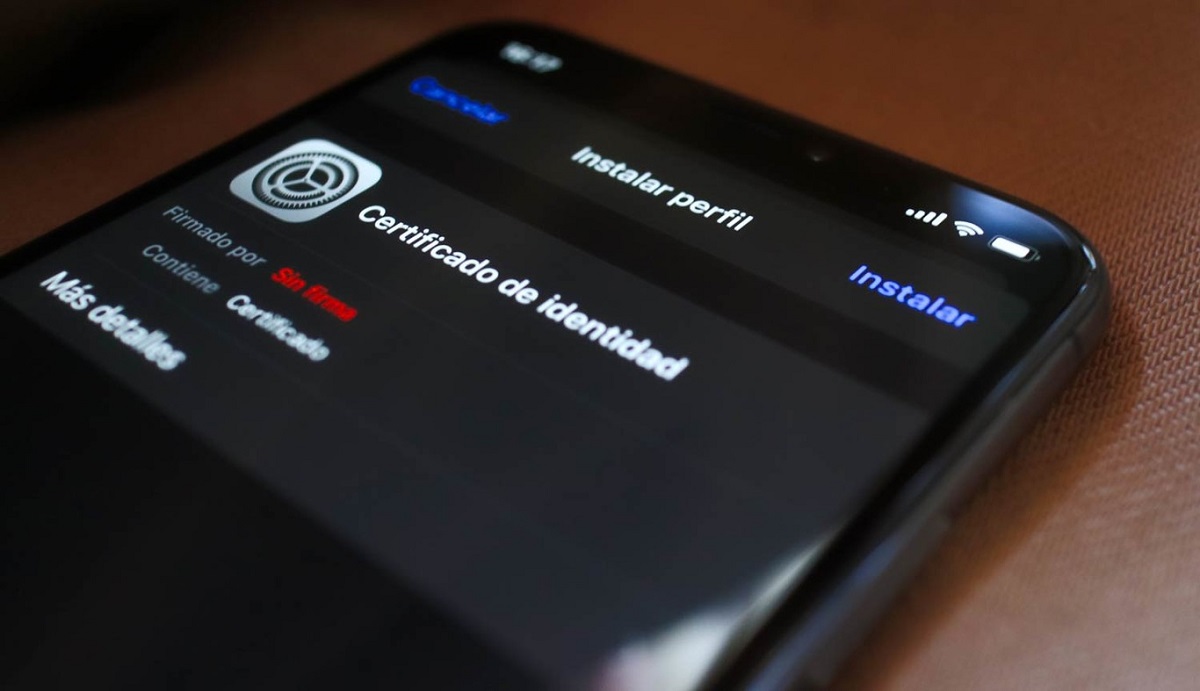
- When you do this, the system will ask you if you want to install it as a profile. Select your iPhone, verify your identity, and accept the installation.
- Go to Settings > “Profile Downloaded” and select “Install.” Enter the iPhone unlock code and certificate password.
- Complete the installation and check Settings > General > Profiles to verify that it is installed correctly.
You can now use it on Safari, official apps, and all compatible digital procedures. If you experience compatibility issues, please update iOS and the FNMT app to the latest version.

How to use your mobile phone's digital certificate on other devices
If you already have a valid digital certificate on your computer or another device, you can export the certificate and install it on your mobile device . It is essential to have a backup copy of the .p12 or .pfx file and the export password.
- Transfer the file to your phone via email, USB, Airdrop, or any other secure method.
- On Android, follow the steps above to install certificates from storage.
- On iPhone, open it from Files and follow the process as an iOS Profile.
- Always enter the export password for the certificate to be valid.
Important: If you request a new digital certificate using the FNMT app when you already have an active one, the previous one will be automatically revoked . Current regulations only allow one certificate per individual citizen. If you want to keep the one you already have, it's best to transfer a copy to your mobile device instead of requesting a new one.
Common mistakes and safety recommendations
- Check the validity and validity of your certificateMost expire after 4 years, although you'll receive a notification to renew it digitally.
- Do not share a copy of your digital certificate or its password.It is personal and non-transferable.
- Save a backup in a safe place (USB, external hard drive, protected cloud).
- If you lose your phone, delete the profile or credential from the certificate manager and request revocation from the FNMT.
- If you experience technical difficulties (app issues, NFC readings, lost PIN), please visit a physical office, contact FNMT support, or update your operating system.
Applications and websites where you can use the digital certificate from your mobile phone
The scope of mobile digital certificate use is increasing. Some of the most common procedures include:
- File your tax return or check tax data at the Tax Agency.
- Consult/report on employment history and Social Security services.
- Signing PDF documents in supported applications.
- Access to digital health systems and regional service apps.
- Consultation and payment of fines in DGT and other organizations.
- Request and sign banking procedures in compatible entities.
- Advanced Authentication in official apps such as My Citizen Folder, miDGT, and most state and autonomous community portals.
Obtaining and managing your digital certificate on your mobile device is easy, secure, and fast if you follow the appropriate steps for your situation and device. Regardless of the method (video, NFC, in-person), you'll have immediate access to all electronic procedures from your phone, saving time and travel, with maximum security. If you maintain a backup and renew your certificate on time, your digital identity will always be operational and protected for any private or public administration transaction.
Table of Contents
- 1 What is a digital certificate and what is it for?
- 2 Who can apply for a digital certificate from a mobile phone?
- 3 Options available to request the digital certificate from your mobile phone
- 4 How to install and manage the digital certificate on your mobile phone?
- 5 How to use your mobile phone's digital certificate on other devices
- 6 Common mistakes and safety recommendations
- 7 Applications and websites where you can use the digital certificate from your mobile phone