

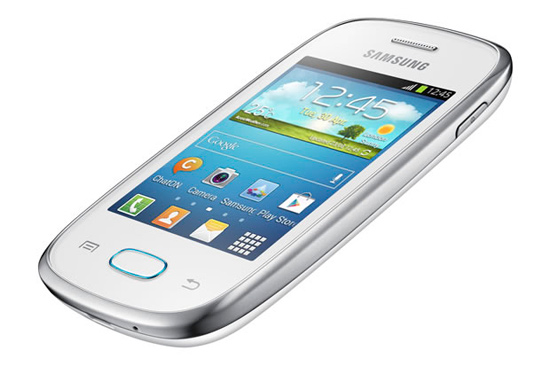
In the world of smartphones, the Samsung Galaxy Pocket Neo has established itself as a durable and affordable option for those seeking a reliable device. However, like any other mobile phone, it can experience issues that require a factory reset or a complete restart to restore it to its original working order. Whether the device has locked, is running slowly, has software glitches, you've forgotten your password, or you simply want to sell it, it's essential to know how to proceed with the safest possible reset.
In this comprehensive guide you will find all the ways to restart, reset and factory reset your Samsung Galaxy Pocket Neo , when to apply each method, the differences between them, security recommendations, risks and alternatives, as well as tips to protect your data and avoid later problems such as security locks.
When is it necessary to reset or factory reset the Samsung Galaxy Pocket Neo?
Before you rush to reset your phone, it's important to understand when a hard reset is essential and when less drastic solutions are preferable:
- If the device is frozen or unresponsive to no action, even after restarting it.
- When the operating system fails repeatedly, it restarts by itself or the apps do not work properly.
- If you have forgotten the unlock pattern, password or PIN and you can't access the system.
- Before selling, giving away or donating your phone, to delete all your personal information.
- In cases of slow performance, memory saturation or malware infections that cannot be resolved otherwise.
- When your phone gets stuck on the boot screen or Samsung logo and can't boot up normally.
However, a hard reset should be a last resort if you haven't been able to resolve the problems through other methods, such as freeing up space, updating software, clearing the cache, or resetting only network settings or problematic applications.
Essential precautions before resetting the Samsung Galaxy Pocket Neo
- Make full backups contacts, photos, videos, messages, documents, call history, settings, apps, and any important files. You can use cloud services like Google Drive, Samsung Cloud, or apps like Smart Switch. It's also recommended to save files to a computer as an additional backup.
- Fully charge the battery before starting the process. It's advisable to have it at least 70-100% charged to prevent it from shutting down during the reset, as an interruption can cause serious software errors.
- Remove the SIM card and microSD card to protect your data and prevent accidental formatting. This also prevents your credentials or sensitive information from being exposed during the process.
- Unlink the Google account in the settings menu if you plan to sell or give away your device. Otherwise, the security system (Factory Reset Protection or FRP) could lock your phone and require the same account to log in after the reset.
- Write down your Google and Samsung credentials in a safe place, as they will be needed to reactivate your device after formatting if it is protected by FRP.
- Check that the backup was successful by verifying that all files are accessible and that nothing has been lost in the cloud or on external media.

Soft Reset and Quick Restart: The First Solution to Crashes
A soft reset is the right option when your phone freezes and becomes unresponsive to the buttons. It's a quick restart that doesn't erase your data and can fix minor issues caused by apps or occasional system errors.
- Turn off the phone or, if it does not respond, remove the back cover and take out the battery for about 10 secondsOn the Samsung Galaxy Pocket Neo, this is easy thanks to its removable battery.
- Replace the battery correctly and turn on the device pressing the power button until the Samsung logo appears.
This process resets the hardware and system, resolving temporary issues. If your phone still isn't functioning normally, move on to the more advanced methods below.

If you can access the system menu options , this is the easiest and safest way to restore your Samsung Galaxy Pocket Neo to its original state:
- Remove the SIM card and the microSD of the telephone.
- On the home screen, tap on Menu and access Settings.
- Within Settings, select Privacy policy (on some systems it may be in General Administration), soon Factory data reset o Reset phone.
- Then choose remove all o Clear all data and confirm the operation.
The device will begin the erasing process, which may take a few minutes. All data stored on the device will be deleted , including apps, files, settings, accounts, and user data. Once finished, the phone will restart and display the initial Android settings, just like when you first bought it.

- If the system requests the password, PIN or unlock patternEnter it to confirm the reset. If you don't remember this information, you can only do it using alternative methods.
- In some cases you will have to go back to set up your Google account and the initial settings after the first reboot.
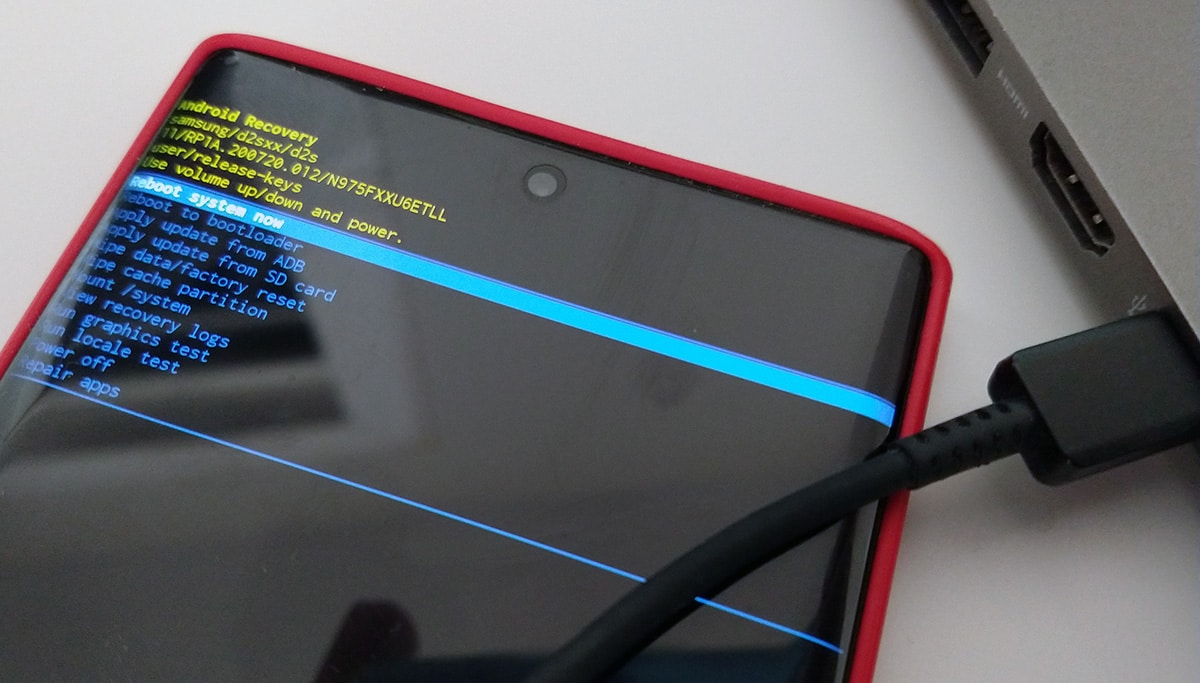
If your Pocket Neo won't boot or you're experiencing serious software issues, the alternative method is a hard reset via Recovery mode . This is one of the most effective ways to recover phones that are completely locked or critically malfunctioning.
- Turn off your phone completely. If it doesn't respond, remove the battery for a few seconds and put it back in.
- Simultaneously press the volume up button, home button, and power button. Hold until the Samsung logo appears, then release all buttons.
- When the Recovery menu appears, use the volume keys to navigate and select Wipe data / factory reset using the power button to confirm.
- In the next menu, select Yes to confirm that you want to delete all user data.
- The process may take a few minutes. Once complete, select Reboot system now to restart the phone.
When the system reboots, everything will be as good as new. This method is recommended only if you can't access the system menu or if other methods have failed.
Resetting using secret codes in the phone app
Another advanced option to reset the Samsung Galaxy Pocket Neo is to use a secret code from the calling app. This method erases all data and settings (be very careful, as it doesn't ask for confirmation):
- Open the phone app.
- Write the following code: * 2767 * 3855 #
- The phone will automatically begin the formatting and reset process, deleting all content.
Don't use this method if you don't have a backup, as there's no going back after entering the code. It's effective for quickly erasing all content if you have access to the system.
Why is it important to unlink your Google account before resetting?
Many Samsung devices include Factory Reset Protection (FRP) , which requires the Google account configured after the first power-up following a hard reset. If you don't remember this account or if you bought the Pocket Neo secondhand, the phone could become locked and unusable. Therefore, before performing a factory reset:
- Go to Settings > Accounts > Google.
- Select your account and click on Delete account.
- Only restart the reset process once you are sure you have successfully unlinked the account.
This step is key if you plan to sell, donate, or give away the phone, to avoid locking the new user.
What is erased when performing a hard reset and how can I protect my data?
Resetting or factory resetting your Samsung Galaxy Pocket Neo will erase all information stored on the device:
- Contacts, photos and videos saved in internal memory
- Applications and their data
- SMS/MMS messages and call logs
- Downloaded files, documents, custom ringtones
- All user settings and system preferences
Therefore, make backups of everything important beforehand using Google, Samsung Cloud, Smart Switch, a computer, or a microSD card. Verify that the backup was successful before formatting your phone to avoid irreparable losses.
Common problems and risks when resetting the Samsung Galaxy Pocket Neo
Although resetting your phone is safe if you follow the steps correctly, there are risks and common mistakes you should be aware of:
- Process interruption due to lack of battery or accidental shutdown, which may cause software failures or render the device unusable.
- FRP Lock If the Google account is not unlinked, it will prevent the phone from being used after the reset.
- Errors during a hard reset can cause operating system issues, require manual reinstallation, or leave the phone in a "brick" state.
- Irreversible data loss if the backup is not performed or if it fails.
- In rare cases, files may disappear from the microSD if it is not removed before the reset.
- Risk of selecting the wrong menu in Recovery mode and deleting essential system partitions.
Avoid these problems by following each step carefully, and if you have any questions, seek professional help before proceeding.
When should you call a service center or ask a professional for help?
If you're unsure how to perform a hard reset, or if problems arise during the process that you can't resolve (the phone freezes, the process doesn't finish, critical errors appear, or you can't restore your data), it's best not to continue trying on your own.
- Consult with friends or family members with experience using Android.
- go to a Samsung authorized technical service or specialized repair shops
- In specialized forums like the Android Forum on our website, you can find help and experiences from other users with the same model as you.
A professional can help you recover your system, reinstall the firmware, or even save your data if the problem is software or hardware related.
Alternatives to hard reset: other solutions before factory reset
Before you decide to do a hard reset, try these less invasive options:
- Update the software: Sometimes installing new updates fixes many issues. Go to Settings > About phone > Software updates.
- Clear the application cache problematic from Settings > Applications > Select App > Storage > Clear cache.
- Restart in safe mode: Press and hold the power button and, when prompted, select "Safe Mode." This disables third-party apps and helps identify if the issue is caused by a downloaded app.
- Reset only certain settings such as Wi-Fi networks (in Settings > General management > Reset > Reset network settings).
These alternatives can save you time and the risk of losing important data.
Frequently Asked Questions About Resetting the Samsung Galaxy Pocket Neo
- Can I recover data after the reset? No, unless you had a previous backup. After a hard reset, the information on your phone is permanently deleted.
- Do I lose the information on my SIM or microSD card? Data on the SIM card (contacts stored there) and the microSD card won't be erased if removed before performing the reset. However, it's a good idea to remove them first.
- Why does my phone ask for my Google account after formatting? Due to FRP protection, you must enter your original account to access the system. If you don't remember it, you must recover it or contact technical support.
- How many times can I reset my phone? The procedure can be performed as many times as necessary, but overdoing the hard reset can damage the system. Only do this when absolutely necessary.
- Does a reset repair physical damage? No, it only fixes software issues. If your phone won't turn on or the screen is cracked, you should see a technician.
- Can Smart Switch be used for backups on this model? Yes, as long as you have compatible software installed and use a PC or microSD card to store your backup.
Critical errors and how to avoid them when resetting your Samsung Galaxy Pocket Neo
If any errors occur during the hard reset process, such as unexpected shutdowns, getting stuck on startup screens, boot loops, or being unable to access the system again, try the following:
- Repeat the process from Recovery mode, making sure you have enough battery power.
- Check that you have not pressed incorrect buttons in the Recovery menu.
- If your phone is bricked, look for official Samsung restoration tools or go to a technical service center.
- Always perform a hard reset with patience and without power interruptions.
The procedure, if carried out carefully, is usually completed without problems. If you encounter difficulties that you cannot resolve, don't hesitate to consult with experts.
How to make an effective backup before resetting
A proper backup is the only way to ensure your data is safe after a reset.
- Sign in Settings > Accounts and backup.
- Select Google Drive, Samsung Cloud, or any preferred cloud service.
- Press on Backup data.
- If you prefer, connect your phone to a computer and manually copy your photos, documents, and downloads folders.
- Always check that the backup was performed correctly and that the files are accessible before proceeding with the reset.
Key recommendations after resetting the Samsung Galaxy Pocket Neo
- Set up your phone from scratch and only install essential applications at first.
- Update your operating system and apps from Google Play to avoid security breaches.
- Restore your backup from Google or Samsung Cloud if you have previously backed up.
- Activate a new security method (PIN, pattern, fingerprint if available).
- Relink your Google account and any other necessary accounts.

Performing a factory reset on the Samsung Galaxy Pocket Neo is a simple process if you follow the steps carefully and take all necessary precautions. It can resolve issues ranging from minor freezes to more critical system errors, restoring smooth and secure operation to your device. However, it should always be considered a last resort after trying less invasive methods such as updating, clearing the cache, or resetting individual settings. Remember to back up your data and unlink accounts before the reset to avoid security locks and problems for future users. If you have any questions, forums and technical support are always available to help. This guide will give you all the information you need to reset your Samsung Galaxy Pocket Neo safely, efficiently, and without any unpleasant surprises.
Table of Contents
- 1 When is it necessary to reset or factory reset the Samsung Galaxy Pocket Neo?
- 2 Essential precautions before resetting the Samsung Galaxy Pocket Neo
- 3 Soft Reset and Quick Restart: The First Solution to Crashes
- 4 Factory Reset from the Settings Menu
- 5 Hard Reset Using Recovery Mode
- 6 Resetting using secret codes in the phone app
- 7 Why is it important to unlink your Google account before resetting?
- 8 What is erased when performing a hard reset and how can I protect my data?
- 9 Common problems and risks when resetting the Samsung Galaxy Pocket Neo
- 10 When should you call a service center or ask a professional for help?
- 11 Alternatives to hard reset: other solutions before factory reset
- 12 Frequently Asked Questions About Resetting the Samsung Galaxy Pocket Neo
- 13 Critical errors and how to avoid them when resetting your Samsung Galaxy Pocket Neo
- 14 How to make an effective backup before resetting
- 15 Key recommendations after resetting the Samsung Galaxy Pocket Neo