

Is your internet connection not performing as expected? Do you want to know if the speed you're getting from Vodafone, Movistar, Jazztel, Orange, or another provider matches what you're paying for? Thanks to modern tools and mobile apps, checking your actual internet speed has never been easier or more reliable. Running a comprehensive speed test will allow you to identify performance issues, understand the state of your network, and make informed decisions about your provider or network configuration.
Today, there are numerous specialized internet diagnostic apps you can install on your Android phone. Among them, Speedtest Android stands out , developed by Ookla, a leading global internet speed testing company. Its popularity has made it a standard for both home users and industry professionals.
Why run an Internet speed test from your mobile phone?
Running speed tests from your Android device lets you measure your connection's actual performance at different times and locations, both on home Wi-Fi networks and with mobile data . This allows you to:
- Detect specific slowness problems or recurring in your connection.
- Check that your provider complies with the contracted speed, whether Vodafone, Movistar, Jazztel, Orange, or others.
- Identify areas of the home or office with low coverage.
- Have objective information before filing a technical incident claim to your operator.
- Compare network quality in different geographic locations thanks to coverage maps.
With the rise of technologies like 4G, 5G, and next-generation Wi-Fi, measuring internet speed has become essential to ensure an optimal experience when browsing, streaming videos, or playing online games. If you want to learn more about how to take these measurements, visit our guide on how to measure internet speed on your mobile device.

Speedtest Android: Everything the leading speed test app has to offer
Ookla's Speedtest Android app is recognized worldwide for its accuracy and ability to perform fast, reliable tests in just seconds. Its intuitive interface and numerous features make it a favorite choice for users of all skill levels.
- Accurate measurement of download and upload speed in Megabits per second (Mbps), reflecting the actual performance of your Internet connection, both via WiFi and mobile data.
- Latency (Ping): It shows the milliseconds it takes for your device to connect to a remote server, essential data for online games or video calls.
- real time charts which help you observe the stability of your connection and the presence of micro-cuts or variations.
- Additional information on jitter and packet loss, useful for detecting more technical problems on the network.
- Speed tests in multiple locations: You can choose the test server from thousands around the world to check cross-platform performance.
- Detailed history of previous tests with the option to easily share results or review them to compare performance at different times.
- Compatibility with all operators operating in Spain and other countries: Vodafone, Movistar, Jazztel, Orange, Digi, MásMóvil, Lowi, etc.
- Customized results based on connection type: Choose between single-type tests (simulating a single file download or using a single VPN) or multi-type tests (simulating multiple downloads or intensive browsing).
One unique feature is the integration of Downdetector , allowing you to get real-time status updates on popular services and apps, identify outages on platforms like WhatsApp, Netflix, Instagram, or any other app, and report issues. This provides a comprehensive view of the internet's status, going beyond just your own connection.

Speedtest Maps and mobile coverage in your area
One of the most outstanding features of Speedtest for Android is the Speedtest Maps section , or coverage maps. This feature allows you to graphically visualize the strength and weakness of different mobile network operators in your area, helping you to:
- Locate the areas with the best and worst coverage from each operator (Vodafone, Movistar, Orange, Jazztel, etc.).
- Check the availability of 5G or mobile technology available in the area.
- Compare the quality of networks at different points, collect real data from other users and make informed decisions if you plan to change operators.
The maps also show the predominant technology type (3G, 4G, 5G) and help you plan your journeys or choose the most suitable provider based on coverage. To better understand these features, you can check coverage on your Android TV browser.
Speedtest VPN: Security and privacy in your speed tests
Speedtest for Android also includes Speedtest VPN , a tool that lets you protect your privacy and keep your connection secure while browsing or running speed tests. Key advantages of this feature include:
- Up to 2GB of free data per month on a VPN connection (or unlimited use in Premium mode).
- Identity protection and traffic against threats and trackers.
- Safe browsing option directly from the application, avoiding records of visited sites and increasing privacy.
- Ideal for checking if your provider limits your speed when using a VPN..
This feature is especially recommended when using public Wi-Fi networks or shared connections, and also for checking your network's performance across different locations or international servers.
Advanced Diagnostics: What exactly does Speedtest Android measure?
By running a speed test with Speedtest, you'll get three key pieces of information related to your connection's performance:
- Download speed (Mbps): Reflects the ability to receive data quickly, essential for watching videos, downloading files, browsing or streaming.
- Upload speed (Mbps): Indicates how quickly you can send files, make video calls, upload images, or use cloud storage.
- Latency (Ping): Measured in milliseconds (ms), this is essential for online gaming, video conferencing, or applications that require speed. A low ping means a smooth connection, especially for tasks that require real-time response.
In addition to this main data, Speedtest now also displays:
- Instability and packet loss, allowing the identification of micro-cuts and advanced technical problems.
- real time charts, which display the stability of the connection during the test.
How to use Speedtest Android step by step and analyze the results
Using Speedtest Android is extremely simple. After downloading the app from Google Play, these are the standard steps for performing a test:
- Open the app and select the network type (WiFi or mobile data) on the side of the screen, choosing between single or multi-connection depending on your needs.
- Hit the start button and wait approximately 30 seconds while the measurements are taken.
- Check the results on screen: Download, upload, and latency speeds will be displayed, along with additional graphs and details.
- Save or share the results if you want to report an incident or compare your network's progress later.
Speedtest automatically archives the history of all your tests, allowing you to check for occasional drops, consistent speed, or variations depending on the time of day. To expand your knowledge, learn about Bluetooth games on Android that require a good connection.
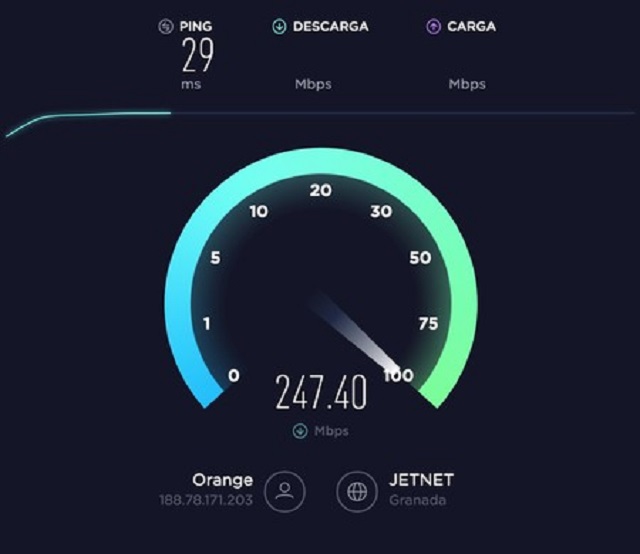
Speedtest Menu and Additional Tools for Android
The application divides its interface into different tabs to offer a comprehensive diagnosis:
- Speed: main section where tests are run and results are obtained in real time.
- Results: allows you to view a detailed history of the tests performed, ideal for comparing over time and demonstrating improvements or deterioration in the network.
- Coverage (Speedtest Maps): Access interactive maps to check signal quality by area and operator.
- VPN: Enable this for secure testing or anonymous browsing. It's especially useful for diagnosing any limitations your provider may have when using a VPN.
- Configuration: Customize test preferences (connection type, unit of measurement, server selection, notifications, etc.).
Comparison with other apps: Why choose Speedtest?
Although there are several speed test apps such as nPerf, Speed Test Master, Fast.com and other web or mobile tools, Speedtest by Ookla stands out because:
- Global server network which guarantees reliable and representative results in any country.
- Advanced measurements (ping, packet loss, stability) that other apps often overlook.
- Integration with coverage maps and VPN, exclusive features in a single application.
- Results history and sharing options to document claims.
- Reliability and accuracy supported by millions of users and experts worldwide.
- Simple and intuitive interface, suitable for any user profile.
Other apps, such as nPerf, offer comprehensive technical reports and advanced features (such as streaming or coverage tests), but are generally more geared toward users with technical knowledge. Speed Test Master adds tools such as data usage monitoring, channel analysis on WiFi routers, and scanning connected devices, useful for environments where network congestion is suspected.
On the other hand, web tools like Fast.com (from Netflix) or the test integrated into the Google search engine are recommended if you don't want to install additional apps and are looking for a simple and quick test from the browser.
Tips for getting accurate results from your speed test
- Perform tests at different times and days to get a realistic view of your connection's performance.
- Repeat the test on both WiFi and mobile data., and from different locations in the home or office.
- Make sure you don't have any apps running in the background. that consume bandwidth during the test.
- Check speed on different devices to rule out that the problem is specific to the mobile.
- Restart the router or mobile phone If you detect abnormally low speeds, repeat the test after a few minutes.
If, after several measurements, your speed is lower than what you're paying for and the problems persist despite restarts and cross-tests, it's advisable to report the issue to your service provider, providing the recorded speeds as evidence. To help you with this, we recommend visiting tools for monitoring your Android speed.
Speedtest by Ookla is available for free on the Google Play Store , with a small download size and no complex permissions required. The app has over 100 million downloads , demonstrating its usefulness and reliability for millions of users worldwide. Its latest update includes interface improvements, Downdetector integration, and performance optimization. For more details, please see [link to update].

The app is available in 17 languages and allows you to share your test results on social media, email, or messaging apps with a single click. You can also opt for an ad-free mode by upgrading to the Premium version, which also expands VPN use.
By checking your connection's actual speed, you can identify potential issues and low coverage areas, and, if necessary, manage complaints or change providers in an informed manner. Thanks to its integrated advanced features and easy operation, Speedtest by Ookla is the best option for having a reliable and up-to-date diagnosis in the palm of your hand.
Are you ready to try Speedtest Android and compare your connection results with other users of Vodafone, Movistar, Jazztel, Orange, or any other network operator? Tell us about your experience in the comments and help the community find the best network where they need it most.
Table of Contents
- 1 Why run an Internet speed test from your mobile phone?
- 2 Speedtest Android: Everything the leading speed test app has to offer
- 3 Speedtest Maps and mobile coverage in your area
- 4 Speedtest VPN: Security and privacy in your speed tests
- 5 Advanced Diagnostics: What exactly does Speedtest Android measure?
- 6 How to use Speedtest Android step by step and analyze the results
- 7 Speedtest Menu and Additional Tools for Android
- 8 Comparison with other apps: Why choose Speedtest?
- 9 Tips for getting accurate results from your speed test