

Parental controls on Google Play for Android are a fundamental tool for protecting children and teenagers from age-inappropriate content, as well as for monitoring and limiting their use of mobile devices. Since Android devices have become so integrated into the daily lives of children and teenagers, correctly configuring these options is essential for fostering a safe, educational digital environment adapted to each developmental stage. Throughout this comprehensive guide, you will discover everything related to setting up, functioning, advantages, limitations, potential drawbacks, as well as alternatives to Google Play parental controls, practical tips, and answers to frequently asked questions.

What are Google Play parental controls and what are they for?
Google Play Parental Controls are designed to help parents and guardians restrict children's access to apps, games, movies, TV shows, books, and music that are not appropriate for their age or maturity level. With this tool, you can:
- Filter and block Apps, games, movies, music, and books that are not suitable according to age ratings.
- Restrict downloads and installations of inappropriate software, both free and paid.
- Limit accidental or unauthorized purchases within the Google Play Store.
- Manage usage time, set schedules and monitor digital activities through specific applications.
This way, you increase children's digital safety, prevent access to dangerous content (violence, inappropriate language, sex, gambling, etc.), and, at the same time, encourage good technology habits.
It's important to note that Google Play parental controls are applied at the device level . Therefore, if your child uses multiple Android phones or tablets, you'll need to configure parental controls on each device separately. Additionally, if the same device is used by several children of different ages, you can adjust the settings individually to protect each user according to their needs.

How Parental Controls Work on Google Play: Key Concepts
Google Play's parental controls operate by creating restrictions that prevent the download, viewing, or purchase of content based on age ratings and the type of media in question. Some key considerations regarding how they work:
- Only applies to the device where it is activatedIf your child uses multiple devices, you'll need to repeat the setup process on each one.
- Each user can have their own parental control settings if they share a device.
- La Protection is managed by a security PINOnly someone who knows it can disable or modify parental controls.
- Does not block search results or access via direct linksRestricted content may appear in searches but cannot be downloaded or purchased without a PIN.
- Apps, games, movies, or books downloaded before you set up controls will still be accessible unless you use Family Link to manually block them.
Keep in mind that the effectiveness of these controls depends on proper configuration and constant updating based on the child's age and maturity.

Advantages and benefits of parental controls on Android devices
- Avoid exposure to inappropriate content, ensuring that children and teenagers only access applications, games, movies or music appropriate for their age.
- Limit accidental purchases or unauthorized, preventing unexpected expenses and access to paid services, subscriptions or microtransactions.
- Monitor device usage, allowing you to set time limits, control access to different functions, and monitor digital activity through reports.
- encourages good digital habits, helping minors responsibly and independently manage their screen time and online resource consumption.
- Promotes the family communication on the responsible use of the Internet, social networks, games and audiovisual content.
- Offer flexibility: You can adapt the restrictions and filters as your child grows and becomes more digitally independent.
How to activate and configure parental controls in the Google Play Store?
1. Settings for children and teens with their own accounts (from 13 years old in most countries)
- Open the application Google Play Store on the minor's Android device.
- Go to the top right corner and press the profile icon.
- Choose Settings > Family > parental control.
- Activate the parental control option.
- Create a Security PIN (make sure the minor does not know it).
- Choose the types of content to restrict: applications and games, films, The music o creative writing.
- Set limits based on age rating or choose from available filters for each type of content.
- Save the settings. The device will be protected according to the limits you set, and preferences can only be changed using the PIN.
2. Settings for children under 13 or accounts managed by adults with Google Family Link
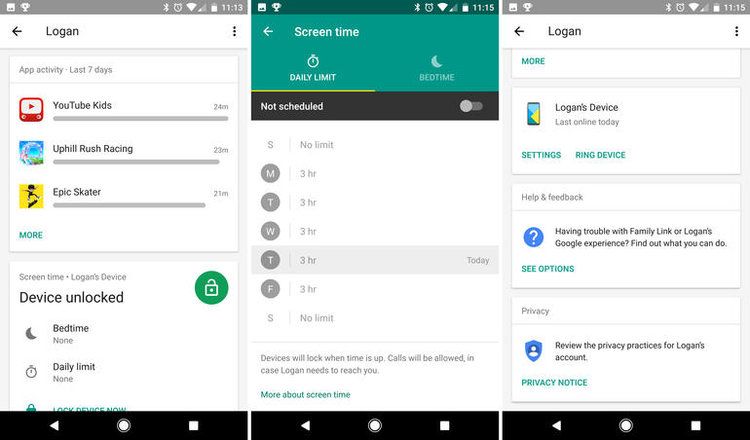
Google Family Link lets you supervise and set more comprehensive rules if your child is under 13 or if you want to remotely manage their device. With Family Link you can:
- Block or approve apps and games before the minor downloads or executes them.
- Restrict access to Google Play content based on age ratings.
- Monitor device activity, screen time, set schedules and “bedtime”.
- Locate the device's location in real time.
- Disable certain mobile features remotely.
- Manage safe search options on Google and filters on YouTube Kids.
To set up Family Link:
- Download the application Google Family Link from the Play Store on both the parents' and children's mobile phones.
- Follow the instructions to link the minor's account and the responsible adult's account. You can create a child's account if they don't have one.
- In the parent app, select the child's account.
- Click on controls > Google Play and defines parameters for content restrictions, approvals, purchases, permissions, etc.
- Apply additional restrictions on device usage, app management, and Google services.
Family Link is free, compatible with most Android devices and even iOS , and offers one of the most comprehensive parental control environments for families.
3. Parental controls integrated into Android settings (Digital Wellbeing and Parental Controls)
In recent versions of Android, go to Settings > Digital wellbeing and parental controls and look for the Set up parental controls option . From this menu, you can start the guided setup, determine who will use the device (children or adults), create the appropriate profile, and adjust access limits, screen time, usage tracking, and app blocking.
Options and filters available in Google Play Parental Controls
The parental control system in Google Play offers filters and restrictions based on age rating and content type :
- Applications and games: You can choose from different age ranges based on the rating (PEGI in Europe, ESRB in the United States, etc.). For example, you can restrict downloads to only PEGI 3, 7, 12, 16, or 18 apps.
- Movies: allows limiting films to all audiences, those aged 7, 13, 16 or 18, depending on local regulations.
- Music: Option to block explicit content (swear words, adult lyrics).
- Books: Option to restrict the purchase or viewing of books with explicit sexual content or not suitable for minors.
Additionally, you can enable authentication for purchases on Google Play, so that your password or PIN is always required to confirm any purchase, preventing accidental expenses.
What are the limits and considerations of Google Play parental controls?
- Parental controls do not prevent you from viewing all restricted search results or accessing them through direct links; they only block the ability to download, purchase, or view them in full.
- If the minor has already downloaded content before activating parental controls, it will not disappear. Only future downloads or new purchases will be restricted. To block apps already installed on devices managed by Family Link, go to the Family Link app and manually block the app.
- The validity of filters depends on the category and rating each developer assigns to their apps, games, or content. There may be errors or mislabeled content.
- Restrictions apply only within the Google Play ecosystem. If a minor installs apps from external sources or uses alternative methods, parental controls will not be effective.
- Active parental supervision is essential, since no system guarantees 100% security against inappropriate content.
Troubleshooting and frequently asked questions about parental controls on Google Play
What do I do if I forgot my parental control PIN?
If you've lost your PIN, you'll need to reset your Google Play Store settings:
- Open Settings on your Android device.
- Go to Apps & notifications > Google Play Store.
- Go to Storage and select Delete data o Clear storage.
- Parental controls and the PIN will be reset. Return to the Play Store to set up parental controls again and create a new PIN.
Why won't an app or game update?
If parental controls block an app update, it's because the new version has a higher rating than allowed. If you want to update, you'll need to temporarily change the filters, update the app, and then reset the controls.
Why does my child keep seeing apps or games that I've blocked?
Content downloaded before enabling parental controls will not disappear. Only future downloads or new purchases will be restricted. To block apps already installed on devices managed by Family Link, go to the Family Link app and manually block the app.
Do parental controls affect active subscriptions and purchases?
Some subscriptions may be automatically canceled if the developer changes their age policy or if your child no longer meets the Google Play rating requirements. Check the terms and conditions for each app.
What other controls and alternatives exist to protect minors?
Along with Google's native options, there are multiple alternatives to further customize digital security for young people. Some recommended apps and solutions include:
- Kids place: Create a dedicated home screen for kids, block calls or app downloads without permission, and allow you to customize your experience.
- QustodioAdvanced parental controls with activity reports, web filtering, app blocking, time limits, and real-time geolocation. Available in both free and premium versions.
- family time: Limit screen time, block adult web content, inappropriate social media apps and games, including SOS alerts and location tracking.
- Kaspersky Safe Kids: App blocking, time limits, and geolocation. The paid version adds social media monitoring and cross-platform protection.
- Norton family: Web page logging, Chrome searches, app blocking, and time limits. It helps teach positive digital habits and restricts contacts or messages.
- locationgy: Combines parental controls, SOS button and location history.
- SecureKids: Remote management, blocking of apps, websites, calls, messages, and contacts. Provides activity reporting and allows you to set alarms and time locks.
- My Sereno: Parental Control: Limits apps, websites, messages, and contacts, and allows you to review activity and location in real time, as well as the use of messaging apps.
- MMGuardian Parental Control: Web filters, contact lists, time limits and geolocation with uninstall protection.
In addition, both Netflix and YouTube offer their own "kids" profiles and settings to limit access to children's content only, and it is recommended to activate SafeSearch on Google and similar filters on other services.
Tips for educating in the responsible use of technology
- Talk openly with your son or daughter about the risks and benefits of technology.Explain the reasons for parental controls so they perceive them as protection and not an invasion of their privacy.
- Encourages dialogue on healthy digital habits, encouraging the minor to consult before attempting to download apps, games, or access new websites.
- Adapt restrictions and controls as they grow and demonstrate responsibility.
- Actively supervise, but respect privacy and intimacy as the adolescent gains autonomy.
- Regularly review and update parental control settings, search filters, and user profiles.
- Teach your children to identify and avoid digital risks, such as cyberbullying, phishing, fraudulent messages, and dangerous apps.
- Empower children to participate in shaping their digital safety, helping them appreciate the benefits of responsible and critical internet and social media use.
- Link technology use with quality family time and offline activities, avoiding overexposure to screens.

Frequently asked questions about parental controls on Google Play
- Do parental controls block all dangerous apps, movies, or books? While filtering is very effective, no system guarantees complete protection. Parents should periodically review the content their child accesses.
- Can I temporarily disable parental controls? Yes, using the security PIN you can modify or deactivate controls. It's useful for supervising new apps or for settings related to the minor's maturity.
- What happens if I travel to another country? Some filters and options depend on local laws and ratings. Parental controls may not work the same in all countries.
- Can parental controls be used to block ads or content on other websites? No, it only works on content on Google Play. To block dangerous websites or ads, you'll need to use extensive parental control apps or secure browsers.
Other useful recommendations and resources for Android parental controls
- Tricks to make your mobile suitable for children and that they do not see what they should not
- How to set my android device on Kids Mode?
- How to set up a mobile phone for use by children

Activating and correctly configuring parental controls on Google Play for Android is one of the most effective steps to protect children from digital risks and promote healthy technology use. By combining native tools like Google Play controls and Family Link with education, open communication, and specialized resources, families can foster safe growth, increasing independence, and peace of mind in their children's digital lives. Technology is a powerful tool, and harnessing its potential depends on our involvement and sound judgment.
Table of Contents
- 1 What are Google Play parental controls and what are they for?
- 2 How Parental Controls Work on Google Play: Key Concepts
- 3 Advantages and benefits of parental controls on Android devices
- 4 How to activate and configure parental controls in the Google Play Store?
- 5 Options and filters available in Google Play Parental Controls
- 6 What are the limits and considerations of Google Play parental controls?
- 7 Troubleshooting and frequently asked questions about parental controls on Google Play
- 8 What other controls and alternatives exist to protect minors?
- 9 Tips for educating in the responsible use of technology
- 10 Frequently asked questions about parental controls on Google Play
- 11 Other useful recommendations and resources for Android parental controls