

Would you like to know how to connect a Chromecast to your TV and unlock all its Android capabilities? Chromecast is one of Google's greatest inventions, allowing you to transform any TV, even older models, into a modern, connected media center. With it, you can enjoy streaming, movies, music, photos, and much more from your phone, tablet, or PC directly on the big screen.
If you've just purchased a Chromecast and want to set it up correctly, take advantage of all its features, and avoid the most common problems, this guide tells you everything you need to know to get the most out of it. You'll find the exact installation steps, essential tips, compatible apps, advanced customization, troubleshooting, and many Android features you may not have known about.
What is Chromecast and why is it so popular?

A Chromecast is a small device from Google that plugs into your TV's HDMI port and instantly transforms it into a Smart TV , regardless of its age or operating system. Thanks to Google Cast technology, the Chromecast acts as a streaming content receiver, allowing you to easily send videos, music, photos, or mirror the screen of your phone, tablet, or computer directly to the TV.
Furthermore, Chromecast can be controlled almost entirely from your Android smartphone or tablet , which acts as a remote control for selecting and managing content. It doesn't matter if your TV is state-of-the-art or several years old: as long as it has HDMI, you can use Chromecast and access services previously exclusive to the latest Smart TVs.

Its main uses include:
- Play videos, series, or movies from platforms like YouTube, Netflix, Prime Video, Disney+, or many others.
- Stream music with apps like Spotify, Deezer, Tidal, SoundCloud, etc.
- Display photos and videos saved on your phone or in cloud services like Google Photos.
- Mirror your Android's entire screen to play games, browse the internet, or use apps on your TV.
- Project presentations, documents, or even video games from your PC or laptop with just a few clicks.
- Use voice assistants or the remote control (on models with Google TV) for more convenient control.
Why choose Chromecast? Because it's a very affordable device, easy to install, compatible with most popular apps, and lets you upgrade your TV without having to buy a new one. Plus, many Smart TV and speaker manufacturers already include Chromecast or Google Cast as standard.
What Chromecast models are available and what are their differences?
The Chromecast family has evolved significantly since its launch. Today, there are several versions, and it's important to distinguish between them to understand their features:
- Classic Chromecast (pre-Google TV models): These are the initial models, known as "HDMI dongles." They don't have their own remote or operating system; they always rely on a mobile device or PC to send content. They allow quality up to Full HD (1080p).
- Chromecast with Google TV (HD and 4K): They incorporate their own operating system based on Android TV/Google TV and a remote control, allowing you to install apps directly and use the device independently, similar to a modern set-top box or smart TV. There are HD versions (maximum 1080p) and 4K versions (UHD + HDR). They support Dolby Vision, Dolby Atmos, HDR10+, and other technologies.
- Chromecast Ultra: A precursor to the Google TV model, it allowed 4K and HDR, but without a standalone operating system or remote control.
- Chromecast Audio: For audio streaming only on devices without HDMI. Currently discontinued, but very useful for older stereos.
- Chromecast built-in: Google Cast technology is included as standard on some televisions and speakers from brands such as Sony, Philips, TCL, Vizio, LG, JBL, among others.
Each version may have slightly different requirements and capabilities, but the setup process is always very similar.
What you need to connect Chromecast to your TV

Before starting the setup, make sure you have these items ready:
- The Chromecast device of any generation.
- Television with HDMI input free where to connect the Chromecast.
- Power cord USB (included) and preferably a free USB socket or port nearby (although some models can be powered by the TV's USB, the power adapter is recommended to avoid power issues).
- Android (or iOS) smartphone or tablet with the Google Home app installed.
- Access to a stable WiFi network (preferably 5 GHz for higher speed).
- Google account to complete setup and log in (optional for some uses, but highly recommended).
Optionally, if you have Chromecast Ultra or models with Google TV, you can connect the device via Ethernet using an appropriate adapter for added stability.
Step by step: How to install and configure Chromecast on your TV
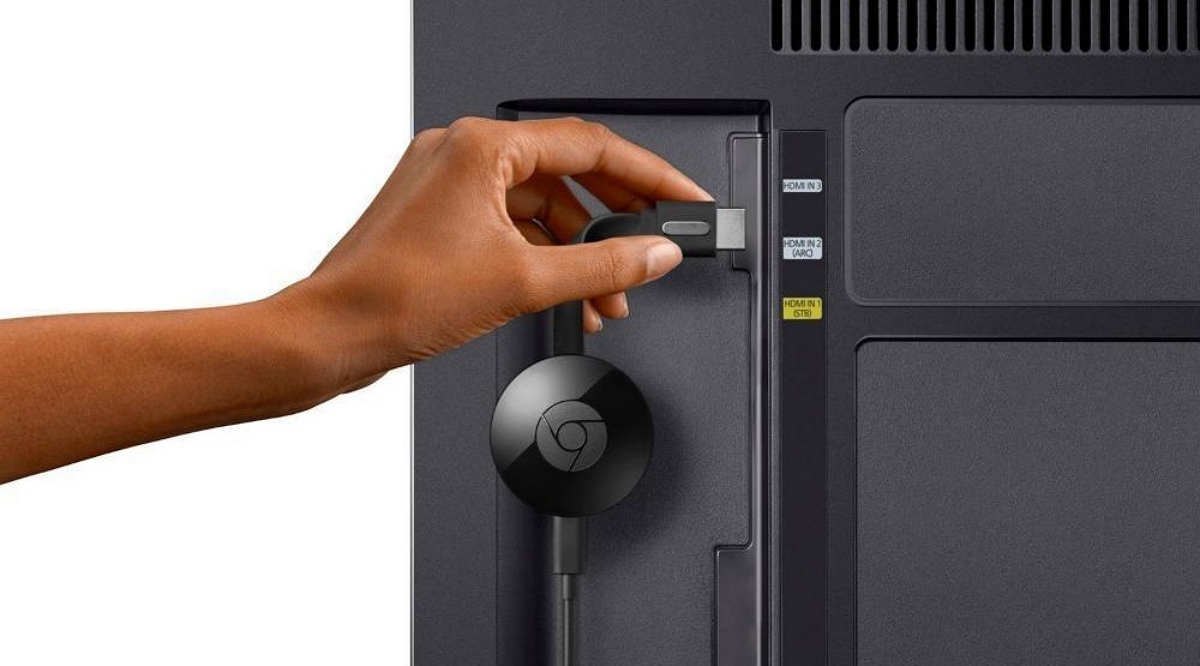
- Connect Chromecast to HDMI and power: Insert the Chromecast into an available HDMI port on your TV. Use the USB cable to connect it to a power source (a wall outlet or a USB port on your TV, although it's better to use a wall outlet if your TV doesn't have enough power).
- Turn on the tv: Change your TV's input or "source" to the corresponding HDMI input. If it doesn't switch automatically, use your TV's remote to do so.
- Download Google Home on your mobile/tablet: Search “Google Home” in the Play Store (Android) or App Store (iOS) and install it.
- Connect to the same WiFi network: Your phone/tablet must be connected to the Wi-Fi network you're connecting the Chromecast to. If the network is dual-band, prioritize 5 GHz for faster speeds.
- Open Google Home and add the Chromecast: When you open the app, you should see a notification that a nearby Chromecast is ready to set up. If not, tap the “+” icon in the top left corner and choose “Set up device > Set up new devices.”
- Select your home in the app: The app will ask you to create or choose a home where the Chromecast will be integrated. If you have multiple homes or rooms, this feature helps you organize them.
- Check the pairing code: A code will appear on your TV and in the app. If it matches, confirm to continue.
- Choose the WiFi network for the Chromecast: Select which network you want to connect the device to (it must be the same as your mobile phone/tablet).
- Configure location, permissions, and other settings: Google Home may ask you if you want to improve the device by sending bug reports (optional), your region, room/location, and more. All of this helps identify your Chromecast if you have multiple devices.
- Finish the process: Once you complete these steps, your Chromecast will be linked to your Wi-Fi network, and you can start casting content directly from compatible apps.
What if you want to change your Wi-Fi later? If you change your router or network, open Google Home, select Chromecast, access its settings, and manually change the network, following the original setup process.

Setup on Android and iOS: Are there any differences?
The setup process is almost identical on Android and iOS. On Android devices, the connection is usually direct, while on some iPhones and iPads, you may need to activate Bluetooth or connect to the Wi-Fi network generated by the Chromecast during setup. Google Home will guide you through each step.
Setting up Chromecast without Wi-Fi at home: Is it possible?
Chromecast normally requires an internet connection to work. However, there's a trick to using it in places without a fixed Wi-Fi network (vacation, second home, etc.): create a Wi-Fi hotspot on your phone with the same name (SSID) and password as your home network and connect the Chromecast to the hotspot. This way, it will continue to work as if you were at home, using your mobile data plan.
Troubleshooting common Chromecast setup issues
Occasionally, complications may arise when setting up or using your Chromecast. Here are the most common problems and their solutions:
- The app does not detect the device: Make sure you're both on the same Wi-Fi network and that you've given Google Home location permissions.
- The Chromecast does not appear in the list of devices: Restart your Chromecast, router, and phone. If it still doesn't appear, manually connect to the Chromecast's Wi-Fi from your phone's settings and repeat the setup.
- Doesn't connect to WiFi: Verify that the key entered is correct and that the network is accessible. Switch to the 2,4 GHz network if you have issues with the 5 GHz network.
- Chromecast is not receiving enough power: Always use the original power adapter, not just the TV's USB, to avoid unexpected shutdowns or restarts.
- Problems after changing WiFi: If you change your router, you'll need to reset your Chromecast to factory settings and repeat the setup process for the new network.
- Factory Reset: Press and hold the Chromecast button for at least 25 seconds, or do so from the Google Home app in its settings. The device will return to factory settings, and you can set it up like new.

Advanced tips and tricks to get the most out of Chromecast on Android

Once your Chromecast is installed, you can take its potential even further. Discover all the extra features this small device has to offer, both on Android and your PC:
1. Customize the wallpaper (ambient mode)

When Chromecast isn't streaming content, your TV displays what's called "ambient mode." You can customize it from Google Home to show:
- Own photos stored in Google Photos.
- Famous art collections curated by Google.
- Useful information such as the time, local weather, headlines, or information about the artist/resource on screen.
Simply go to your Chromecast settings, search for “Ambient Mode,” and choose the source and type of information to display.
2. Ethernet cable connection for maximum speed
If you're experiencing unstable Wi-Fi, you can use official adapters or other Chromecast-compatible adapters to connect your device via Ethernet cable. This will provide greater stability and speed, and prevent interruptions when streaming 4K video or playing cloud games.
3. Casting content from your mobile (Google Cast)
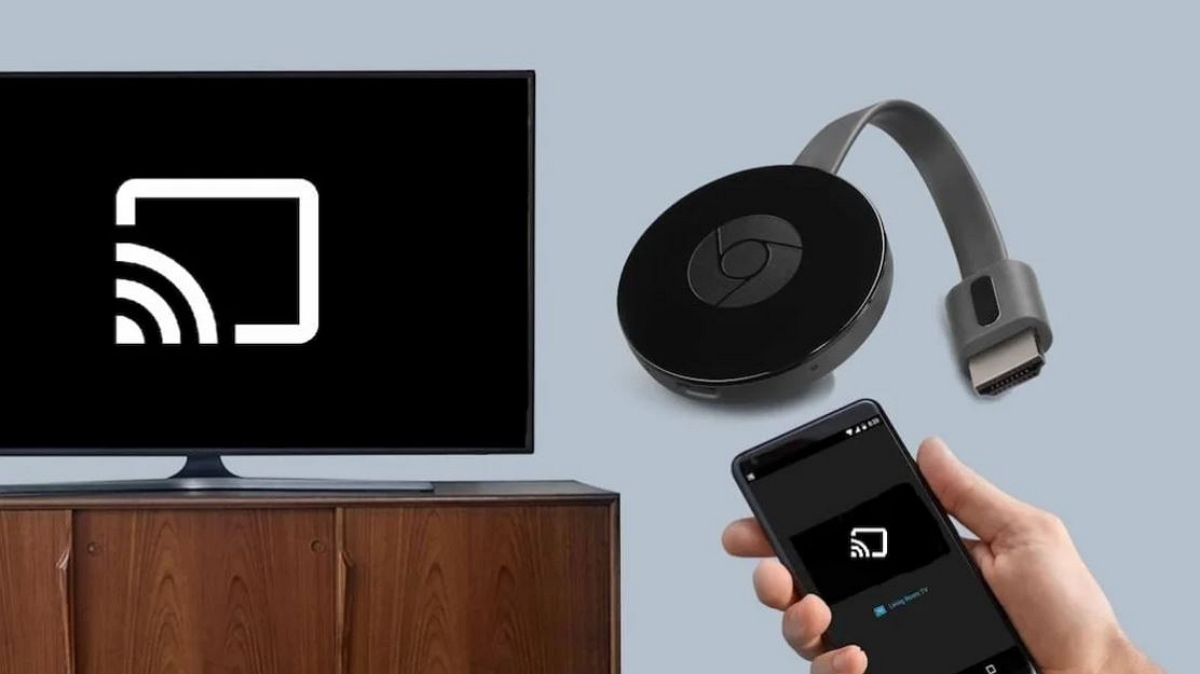
Most popular apps include a Cast or "cast to Chromecast" icon. Simply tap that button and select your device to watch any video, series, music, or even photos on your TV. Compatible with YouTube, Netflix, Amazon Prime Video, Disney+, Spotify, Plex, Google Photos, VLC, Deezer, Atresplayer, Mitele, Movistar+, HBO Max, and hundreds more.
4. Mirror your Android device's full screen
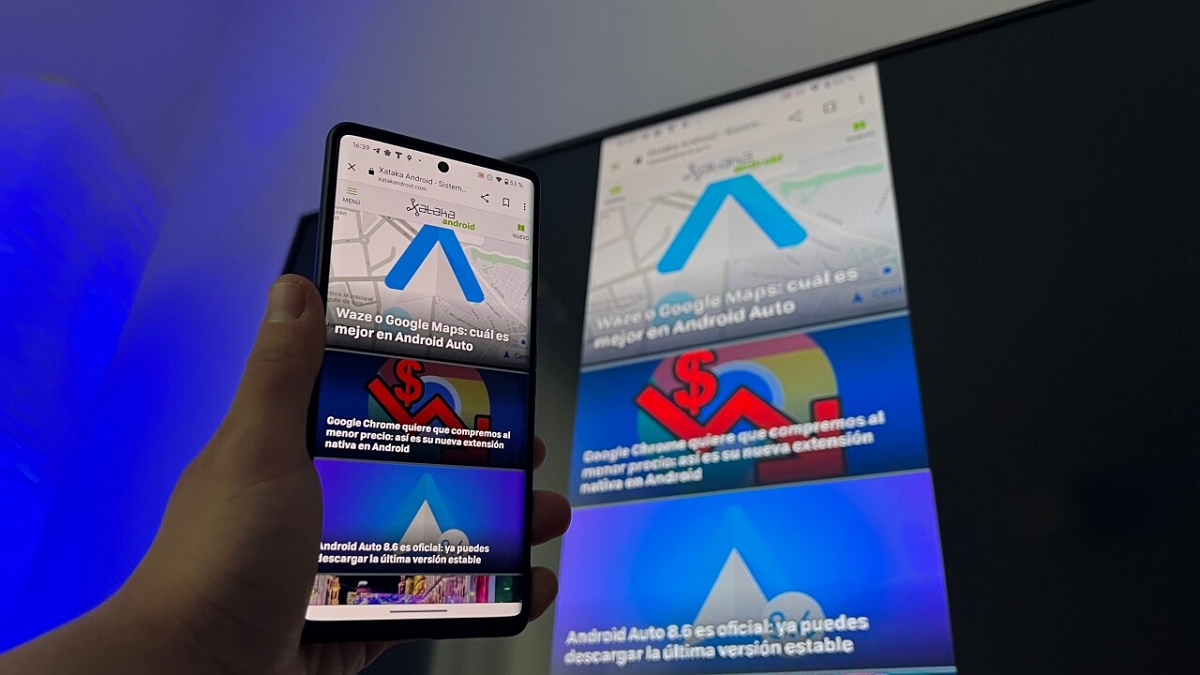
- Connect your Android to the same WiFi as the Chromecast.
- Go to Google Home and select your Chromecast.
- Tap “Send my screen” or “Screen projection.”
Perfect for showing unsupported apps, playing games, browsing, presenting documents, or displaying anything large. Remember, to end the broadcast, return to the same menu and tap "Stop Broadcasting."
5. Adjust the video quality and choose between fluidity or resolution
If you're having speed issues, Chromecast and Google Home allow you to lower the resolution or prioritize smoothness. Go to settings and choose the appropriate option (for example, enable 50Hz if your TV supports it to avoid flickering, or manually reduce the quality if your connection is limited).
6. Cast content to Chromecast from your PC
If you're using Google Chrome on your computer, you can project either a specific tab or your entire desktop:
- Open Chrome, access the three-dot menu, and select “Send” or “Cast.”
- Select your Chromecast and choose whether you want to share just the current tab, your entire desktop, or a specific media file.
Ideal for viewing web pages, presentations, movies hosted on your computer, or even local games.
7. Use your phone as a remote control
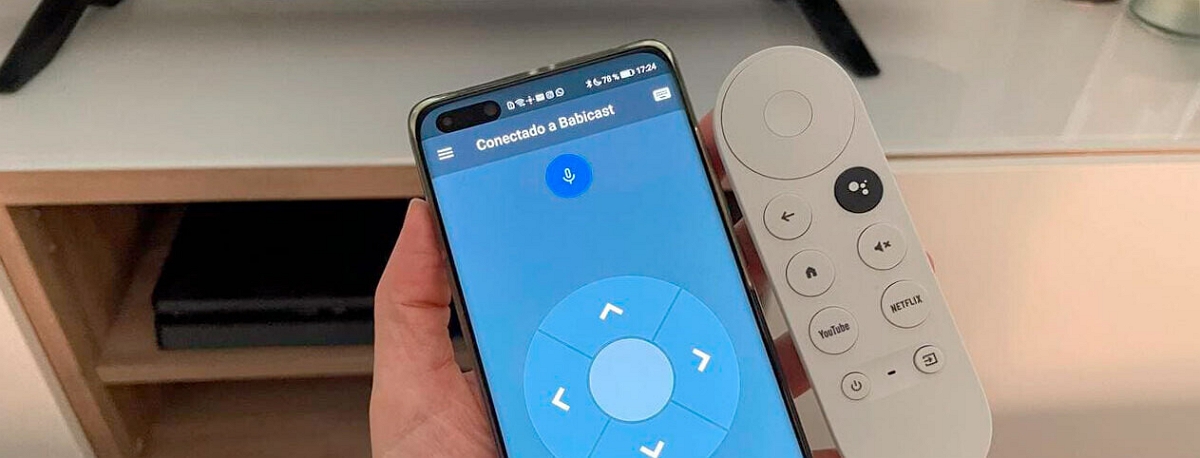
If your model has a Google TV and remote, but you've lost it or prefer your phone, use the Google Android TV Remote app, which automatically connects as an alternative remote. Additionally, many functions can be controlled from the Google Home app itself.
8. Guest mode on Chromecast
Perfect when you have guests over: Activate Guest Mode from Google Home and anyone can send content to the device using a PIN, without being connected to your Wi-Fi network. This way, your friends can share videos or music on your TV without compromising the security of your home network.
9. Create playlists on YouTube (or compatible apps) for Chromecast
- Play a video on YouTube from your mobile, tablet or PC and send it to the Chromecast.
- Long press on any other video you want to add, choose “Add to Queue.”
- Repeat this process to create your own playlist that will play one after another on your TV.
You can do this with other compatible apps, like Spotify or Plex, by managing your playlists for music or themed marathons.
10. Install apps from outside the official store
If you have Chromecast with Google TV (Android TV), you can install apps from external sources (APKs) when one isn't in the official app store. To do this:
- Go to “Settings” > “Apps” > “Security & Restrictions”.
- Allows installation from “Unknown Sources”.
- Use apps like Send Files to TV or a file manager to install the downloaded APK.
This greatly expands the available catalog, including emulators, alternative apps, or modified versions.
11. Take advantage of offers and promotions
Some versions of Google Home display exclusive offers for Chromecast users: free months of streaming services, discounted premium apps, and more. Go to the side menu, search for "Offers," and check back frequently.
12. Find all Chromecast-compatible apps
Chromecast's success lies in its compatibility with thousands of apps. Search the Google Play Store for the Google Cast section to see all the apps that allow direct content casting. You can install them on Android or iPhone, or add Chrome extensions as appropriate.
13. Turn off playback control notifications for more privacy
By default, Android displays a control bar on all devices connected to the same network when someone casts content to your Chromecast. If you don't want others to control or know what you're watching, go to your Chromecast settings in Google Home and disable the "Allow other users to control media" option.
Troubleshooting and FAQs
Can I use Chromecast without WiFi?
Yes, by creating a mobile hotspot with the same name and password as your old Wi-Fi, or by using guest mode support. Ideal for second homes or while traveling.
Does Chromecast work with PC or only with mobile?
It works perfectly with PCs and laptops. Just use Google Chrome, select the "Send" icon, and choose to send the tab, file, or entire desktop.
My TV doesn't have Wi-Fi, can I set up Chromecast?
Yes, the Chromecast streams over Wi-Fi, but it only requires an HDMI port on your TV. The Wi-Fi network is used by the Chromecast, not the TV.
I can't find the device in the Google Home app, what do I do?
Try restarting your Chromecast, router, and phone. Check your Wi-Fi and location permissions. If that still fails, try resetting your device to factory settings.
What do I do if I change my router or WiFi password?
You must forget the previous network on the Chromecast and repeat the setup process from Google Home for the new network.
Is Chromecast compatible with all streaming apps?
Most do, but some don't offer a Cast button. For these, you can use the screen mirroring feature to view them on your TV anyway.
Can I use Chromecast for gaming?
Yes, you can mirror games from your phone or tablet, and some games have native Cast or Android TV support. Additionally, game streaming services like Stadia (until its closure), GeForce Now, Xbox Cloud Gaming, or Steam Link can work well with screen sharing.
Thanks to Chromecast, you can enjoy a true multimedia experience on your TV, regardless of the age of the device. Whether you're watching series, listening to music, showing off your photos, browsing from the couch, or turning your living room into a makeshift movie theater, this device allows you to have complete control from your phone, PC, or even with your voice on advanced models. All the tricks and solutions you've discovered here will help you make the most of every detail and resolve any difficulty in seconds. Do you have any additional tips or questions? Leave them in the comments and help other users!
Table of Contents
- 1 What is Chromecast and why is it so popular?
- 2 What Chromecast models are available and what are their differences?
- 3 What you need to connect Chromecast to your TV
- 4 Step by step: How to install and configure Chromecast on your TV
- 5 Setup on Android and iOS: Are there any differences?
- 6 Setting up Chromecast without Wi-Fi at home: Is it possible?
- 7 Troubleshooting common Chromecast setup issues
- 8 Advanced tips and tricks to get the most out of Chromecast on Android
- 8.1 1. Customize the wallpaper (ambient mode)
- 8.2 2. Ethernet cable connection for maximum speed
- 8.3 3. Casting content from your mobile (Google Cast)
- 8.4 4. Mirror your Android device's full screen
- 8.5 5. Adjust the video quality and choose between fluidity or resolution
- 8.6 6. Cast content to Chromecast from your PC
- 8.7 7. Use your phone as a remote control
- 8.8 8. Guest mode on Chromecast
- 8.9 9. Create playlists on YouTube (or compatible apps) for Chromecast
- 8.10 10. Install apps from outside the official store
- 8.11 11. Take advantage of offers and promotions
- 8.12 12. Find all Chromecast-compatible apps
- 8.13 13. Turn off playback control notifications for more privacy
- 9 Troubleshooting and FAQs