

Do you see the message Google Play Services are updating (Google Play Services are being updated) constantly on your Android phone? This error is one of the most annoying and common issues users can experience, especially on imported devices or those running heavily customized versions of Android. It causes some apps to stop working, prevents you from updating apps from the Google Play Store, and can impact your smartphone's security, performance, and connectivity.
Here we offer you the most complete, up-to-date and exhaustive guide To understand what this message means, its causes, step-by-step troubleshooting steps, and prevent it from appearing again. It includes all the expert solutions recommended by Google, major technology portals, and real-life user experiences in help forums, so you can get your Android device back on track.
Why do I see the message “Google Play Services are updating”?
The message "Google Play Services are updating" appears when Google Play Services cannot update correctly or there are internal conflicts preventing them from functioning normally. Google Play Services is an essential application for the Android platform: it acts as a bridge between the operating system and most apps, managing authentication, synchronization, maps, push notifications, and facilitating system, app, and security patch updates.
If an update fails, apps that rely on these services (such as Gmail, YouTube, Uber, WhatsApp, online banking, Maps, etc.) may freeze, close unexpectedly, and display errors that make them impossible to use normally. It also prevents the Google Play Store from installing or updating apps, further affecting the security of your phone.
Main causes of the error:
- Update failed or incomplete from Google Play Services or Google Play Store.
- Accumulation of corrupted data/cache both on Google Play Services and the Play Store.
- Incompatible version from Play Services for your device model/ROM.
- Unstable internet connection, problems with the system date or time being incorrectly configured.
- Lack of storage space on the device.
- Mobile phones without Google certification (some Huawei, Chinese versions, custom ROMs that do not include GMS).
- Battery restrictions or running in the background.
Each cause requires a different approach to resolution. Below, we delve step by step into the most effective and safe solutions, from the simplest to the most advanced.
Solutions to the "Google Play Services are updating" error
1. Restart the device
Although it may seem simple, restarting your smartphone often resolves this and other Android errors. Doing so clears the RAM and closes conflicting processes. Turn your device completely off, wait a few seconds to eliminate any residual files, and then turn it back on. If the message disappears, it was a temporary glitch; if it persists, proceed to the next step.
2. Check your Internet connection
The lack of a stable connection Internet access (Wi-Fi or mobile data) prevents Google Play Services from downloading and installing updates. Switch between Wi-Fi and mobile data, try other networks, or restart your router if necessary. Make sure your device isn't in airplane mode and that you have optimal coverage.
If you're using a VPN, please temporarily disable it as it may interfere with Google data downloads.
3. Check and correct the system date and time
An incorrect date or time can cause conflicts in app synchronization and secure connection to Google's update servers.
- Opens Settings > System > Date & time.
- Active automatic date and time y automatic time zone whenever possible.
- If they are already enabled and the error persists, disable them and re-enter the date and time manually.
- Restart the device.
4. Free up storage space
If your phone has little free memory , automatic updates and downloads may fail. Delete photos, videos, and apps you don't use, and empty the system trash. Go to Settings > Storage to check the available space and, if necessary, use a temporary file cleaner.
5. Manually update Google Play Services and Google Play Store
Sometimes the system fails to update services on its own. You can force the update:
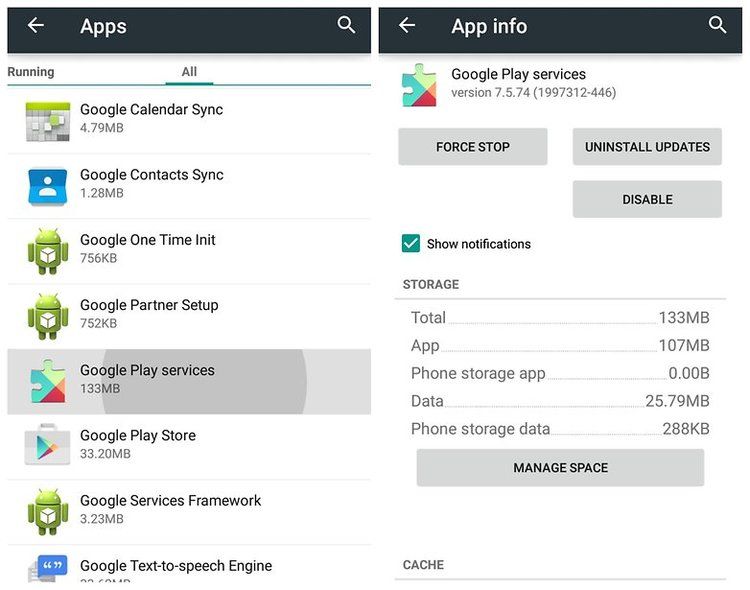
- Opens Settings > Apps > See all apps.
- Search Google Play services and access Details of the application to check if there is an option Update directly from the Play Store. If the option appears, tap and confirm.
- Do the same with Google Play Store and repeat the process.
If you can't find the Update button , you can manually download the latest version of the Google Play Services APK (only from trusted sources like APKMirror) and follow the steps provided to install it.
6. Clear cache and data of Google Play Services, Play Store, and Google Services Framework

The most common and effective method. Follow these steps:
- Go to Settings> Applications (or Application Manager).
- Press on See all applications to display the complete list.
- locate and select Google Play Store.
- Sign in Storage and cache.
- Balance Clear cache & AFTER Delete data.
- Repeat the process with Google Play services (also enters Storage management and select Clear all data to remove possible corrupt files).
- Do the same with Google services framework (if available in your version): Force Stop, Clear Cache, and Clear Data.
- Restart the mobile.
Warning: Deleting Google Play Services data may cause you to lose data related to Google Pay, saved passwords, or app access. You must sign in again after these steps. Do NOT uninstall Google Play Services unless specifically instructed to do so by the manufacturer, as this may temporarily render your device unusable.
7. Uninstall Google Play Services updates
If the error persists, uninstall the Google Play Services updates to revert to the factory version (the system will automatically prompt you to download the latest compatible version shortly afterwards).
- En Settings> Applications, opens Google Play services.
- Click on the menu (three vertical dots) and select Uninstall updates.
- Confirm the action and restart the device.
- Upon startup, connect to the internet and open any Google app (Maps, Gmail, Drive, etc.) to force the service to reinstall/update automatically.
8. Delete and re-add your Google account
If the conflict is with your account data sync, temporarily remove your Google account from your device and then add it again.
- From Settings > Accounts, select your Google account and press Delete account.
- Restart the device.
- Please log in again Settings > Accounts, choose Add account > Google and log in.
- Check if the problem persists.
9. Check permissions and battery optimization
Some manufacturers apply battery restrictions or background process optimization that may affect the updating of Google Play Services.
- Go to Settings > Battery > Battery Optimization.
- Search Google Play services y Google Play Store and select the option Do not optimize/Allow in background.
- Check also in Settings > Apps > Google Play Services > Permissions that has the necessary permissions enabled (storage, phone, location, etc.).
10. Update the Android operating system

In some cases, incompatibility is caused by an outdated Android system . Go to Settings > System > Software update and check for any pending updates for your device. Applying the latest updates may resolve compatibility issues.
11. Reinstall Google Play Services from an APK file
If your device is uncommon, uses a custom ROM, or none of the above steps have worked, you can manually install the correct version of Google Play Services by downloading the APK from trusted sites like APKMirror or APKPure (look for the appropriate version for your ARM, ARM64, or x86 architecture).
- Allows installing apps from unknown sources from Settings > Security.
- Download the file APK and open it to proceed with the installation.
- Reboot your device after installation.
Caution: Only use files obtained from highly reliable sources to avoid security risks.
12. Reset the device (Only as a last resort)
If the error persists after trying all the previous solutions, back up your data and perform a factory reset to return your device to its original state. This will erase all apps and data, so be sure to save anything important. This action often resolves serious system errors or corrupted files.
13. Contact technical support or go to the official service center
If the problem persists and your phone is under warranty, the best course of action is to contact your brand's official technical support . They will be able to perform in-depth checks or, if necessary, replace the device.
Other checks and special cases
In some scenarios, the error may have external causes:
- General Google server issues: If the error appears simultaneously to thousands of users, it may be due to global incidents that can be consulted on platforms such as DownDetector or social networks.
- Devices not certified by Google: Some Chinese phones (especially certain Huawei variants or AOSP ROMs) don't include official GMS support and may experience this error. Installing a certified ROM or referring to specific guides for your model may be necessary.
- Background App Restrictions: Make sure Play Services and Play Store can run unrestricted in the background by disabling extreme battery savers or similar settings in Settings > Battery.
Why it's important for Google Play Services to work properly

Google Play Services are the hidden heart of your Android device. They manage authentication, cloud syncing, virtual payments, map and location access, notifications, critical security updates, and much more. Without them, most of the apps you use daily—Google, social media, messaging, transportation, games, productivity, digital banking—can experience serious problems.
Additionally, they act as a compatibility layer between different Android versions and manufacturer customizations, allowing apps to function equally across different mobile brands and models.
Consequences of having outdated or conflicting Google Play Services:
- Apps that won't open, close unexpectedly, or display errors.
- You cannot install/update apps from the Google Play Store.
- Loss of synchronization of contacts, calendars and cloud backups.
- Push notification or location issues.
- Security and privacy risks.
When you shouldn't clear the Google Play Services cache or data
As you've seen, clearing the cache and data is an effective solution. However, it's important to avoid using this method to free up space, as regularly clearing the cache can:
- Reduce the speed of access to temporary data in apps.
- Forcing apps to re-download files, increasing mobile data usage.
- Force reauthentication on services like Google Pay, Gmail, etc.
Use this method only in case of problems and not as a routine maintenance method.
Frequently asked questions about the Google Play Services are updating error
Can I uninstall Google Play Services?
No, it's not possible to uninstall Google Play Services except on highly customized or rooted systems, and doing so can disable essential Android functions. Uninstalling updates is only recommended as part of the troubleshooting process.
Why doesn't my phone have Google Play Services?
Some imported devices or Chinese versions don't come with these services by default due to regional restrictions. If this is your case and you want to use Google apps, you'll need to manually install the GMS Suite (this can be complicated on some models).
What happens if I ignore the message and continue using my phone?
Over time, many apps will stop working properly, you won't be able to install updates, data will stop syncing, and your security will be compromised.
Additional tools and resources to troubleshoot "Google Play Services are updating"
- Official Google Play Help – Troubleshooting and contacting Google support
- APKMirror Google Play Services – Manually download the latest version
- DownDetector – Status of Google services worldwide
Direct download of Google Play Services if not installed
In most cases, Android phones from well-known brands include Google Play Services pre-installed. If your smartphone doesn't have it, you can download it for free from the Google Play Store.


Please note that if your device is not supported or certified, this method may not work properly.
Have you experienced this error?
If you've resolved the "Google Play Services are updating" error by following this guide or using a different method, we invite you to share your experience in the comments section. Your experience may help other users with the same issue. If you have additional questions, you can also ask, and the community or our team will try to help you.
You may also like
Keeping Google Play Services running smoothly is vital for ensuring the optimal performance, security, and overall experience of your Android phone. If you encounter the "Google Play Services are updating" error message, you now have a proven, detailed, and safe set of steps to resolve it, preventing your favorite apps from stopping and keeping your device protected in the long run.
Table of Contents
- 1 Why do I see the message “Google Play Services are updating”?
- 2 Solutions to the "Google Play Services are updating" error
- 2.1 1. Restart the device
- 2.2 2. Check your Internet connection
- 2.3 3. Check and correct the system date and time
- 2.4 4. Free up storage space
- 2.5 5. Manually update Google Play Services and Google Play Store
- 2.6 6. Clear cache and data of Google Play Services, Play Store, and Google Services Framework
- 2.7 7. Uninstall Google Play Services updates
- 2.8 8. Delete and re-add your Google account
- 2.9 9. Check permissions and battery optimization
- 2.10 10. Update the Android operating system
- 2.11 11. Reinstall Google Play Services from an APK file
- 2.12 12. Reset the device (Only as a last resort)
- 2.13 13. Contact technical support or go to the official service center
- 3 Other checks and special cases
- 4 Why it's important for Google Play Services to work properly
- 5 When you shouldn't clear the Google Play Services cache or data
- 6 Frequently asked questions about the Google Play Services are updating error
- 7 Additional tools and resources to troubleshoot "Google Play Services are updating"
- 8 Direct download of Google Play Services if not installed
- 9 Have you experienced this error?
- 10 You may also like