

Installing APK applications on Android opens the door to a world of apps beyond the Google Play Store. Whether you want to access beta versions, install software unavailable in your region, or simply try apps not found in the official store, understanding the process and risks of installing APK files is essential for any Android user.
What is an APK file and what is it used for?
An APK ( Android Application Package ) file is the executable file format used by the Android operating system to distribute and install applications. This file contains everything an app needs to function: code, resources, images, databases, and metadata. It can be considered the equivalent of an EXE file in Windows or a DMG file in macOS.
Thanks to APKs, you can manually install apps on your device, even those not available in your country, older versions of an app, or exclusive developer tools. Additionally, there are alternative stores like the Amazon Appstore, Galaxy Store, and specialized repositories like APKMirror, APKPure, or Uptodown that work based on APKs.

Advantages and risks of installing APK applications on Android
One of Android's main attractions is the freedom to install apps from any source . However, this flexibility also poses risks to the security of your device and your personal data.
- Advantages: Access to beta versions, apps not available in your region, new features before they hit the Play Store, the ability to revert to previous versions, exclusive tools, and much more.
- Risks: When installing APKs from unreliable sources, you expose yourself to Viruses, malware, Trojans, and applications that can steal personal information (photos, passwords, cards, etc.). Some APKs may contain malicious code or allow unauthorized access to cameras, microphones, or location.
It's essential to download APKs only from trusted sources like APKMirror, APKPure, or alternative official app stores. Avoid forums, P2P networks, or unknown websites, where the risks are much higher.
Before you start: requirements and first considerations
Before installing any APK on your Android phone, keep these key points in mind:
- Check the origin from the APK file. Always prefer verified sources.
- Check compatibility of the APK with your Android system version and your device model.
- Use an antivirus to analyze downloaded files. Tools like VirusTotal allow you to upload an APK file and scan it for threats.
- Make backup copies of your personal data to avoid losses due to errors or problems with installations.

Step by Step: How to Install APK Apps on Android
1. Download the APK file from a reliable source
The first essential step is to get the APK file on your device. Sites like APKMirror, APKPure, or Uptodown are highly recommended for their file review and verification policies. Do the following:
- Visit the app's official website, a trusted repository, or the developer's website.
- Find the app or game you need.
- Click the "Download APK" button. Remember that a security warning message may appear; only click "Download Anyway" if you trust the site.
- The file will be saved in the downloads folder on your Android phone or tablet.

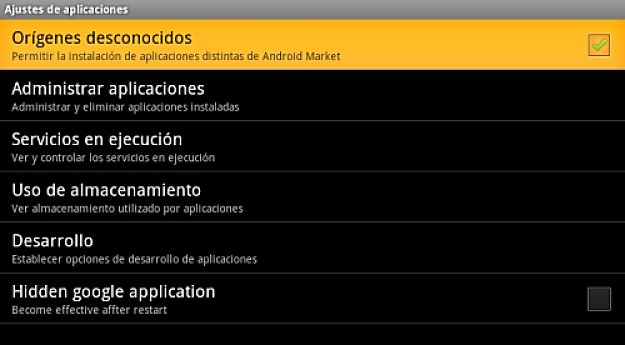
2. Enable installation of apps from unknown sources
By default, Android prevents the installation of apps from outside the Play Store as a security measure. The process for enabling installation from unknown sources varies depending on the operating system version:
- Android 8 (Oreo) or higher: Permission is granted individually for each application (browser, file manager, etc.). Here you can learn how to manage facilities.
- Android 7 or below: The permission is global for the entire system.
- Go to Settings> Security.
- Activate the option Unknown sources.
- Accept the warning notice.
3. Install the app from the APK file
Once you have the APK file and permissions enabled, follow these steps:
- Locate the APK file in your downloads folder using your file explorer.
- Click on the file to start the installation.
- Review the permissions the app requests. If everything looks correct, tap "Install."
- When the process is complete, the "Open" option will appear to launch the application directly.
If at any point the system blocks the installation, make sure you've granted the appropriate permission to the app from which you're opening the APK. Remember that if the file comes from a dubious source, it's best not to continue.
4. Install an APK from your computer
You can also download APK files on your PC and transfer them to your Android device. The procedure is simple:
- Download the APK to your computer.
- Connect your phone to your PC using a USB cable and enable file transfer.
- Copy the APK file to your preferred folder within your internal storage or microSD.
- On your phone, use the file explorer to locate the APK and follow the process above.
- Alternatively, you can use cloud services like Google Drive, Dropbox, or OneDrive to transfer the APK file and download it directly from your smartphone.
5. Revoke permissions to unknown sources after installation
For security, it's always recommended to disable the installation of apps from unknown sources after completing the process. This prevents accidental or unauthorized installations. You can do this by returning to the menu where you enabled the permission and disabling it.
How to check if an APK is safe before installing it
As a fundamental part of the process, you must ensure that the APK is free of malware. To do this:
- Scan the APK file through services such as VirusTotalThis online service scans the file with multiple antivirus engines.
- Compare the APK's digital signature (SHA-1, SHA-256) with the official one whenever possible.
- Always choose APKs from reputable sites with community reviews/verifications.
What are the real risks of installing APK files?
- Malware and viruses: You can infect your device with malware that steals your passwords, accesses your camera, microphone, or location without permission.
- Modified apps: Some hacked APKs may contain hidden spyware or adware.
- Information theft: Passwords, private photos, and banking details may be exposed.
- Installing unwanted apps: APKs sometimes include bundles with additional apps or intrusive advertising.
- Blockages and malfunctions: An unofficial application can leave the system unstable or cause serious failures.
Tips to minimize risks: download only from trusted sources, keep your Android system updated, and use reliable antivirus software.
Alternatives and safe stores to download APKs
There are parallel stores and repositories that thoroughly review files before making them available to users. Among the main recommended sources are:
- APKMirror: One of the most trusted APK repositories in the world, guaranteeing original and verified files.
- APKPure: Another popular platform, very up-to-date and with security controls.
- Uptodown: Alternative store offering free and reviewed downloads.
- Amazon App store: Recommended for those looking for apps outside of Google Play but from a major company.

What do I do if an APK causes problems or I detect malware?
If after installing an APK you notice strange behavior on your phone (unwanted ads, slowness, apps popping up on their own, redirects, etc.), you've likely installed malware. To fix this:
- Install a trusted antivirus such as Avast, Bitdefender, Kaspersky or ESET from the Play Store and perform a full scan.
- Uninstall the suspicious app immediately.
- Review the permissions of recently installed apps from the settings options.
- In severe cases, consider resetting your device to factory settings after backing up your data.
Frequently Asked Questions About Installing APK Apps on Android
- Is it legal to install APKs? Yes, as long as they are not pirated or copyright-infringing paid apps.
- Can I update apps installed via APK? Yes, but you won't receive automatic updates from the Play Store. You'll need to download the new version manually.
- What happens if I install an older version? You can do this, but you may lose compatibility with some features or experience bugs.
- Can an APK brick my phone? It's rare, but a malicious APK could damage your system. That's why you should only use trusted files and sources.

Installing APK applications on Android greatly expands the possibilities for customization and access to new features or exclusive apps, but requires extreme responsibility and caution. Always use trusted sources, analyze files before installing them, and keep your system and security apps up to date.

Table of Contents
- 1 What is an APK file and what is it used for?
- 2 Advantages and risks of installing APK applications on Android
- 3 Before you start: requirements and first considerations
- 4 Step by Step: How to Install APK Apps on Android
- 5 How to check if an APK is safe before installing it
- 6 What are the real risks of installing APK files?
- 7 Alternatives and safe stores to download APKs
- 8 What do I do if an APK causes problems or I detect malware?
- 9 Frequently Asked Questions About Installing APK Apps on Android