

WhatsApp has become an essential tool for daily communication, being the most popular messaging app not only among Android users , but also among those who use computers, tablets, and even, as we'll see in this guide, Android TVs . While it might seem unusual, installing WhatsApp on your Smart TV can open up new possibilities for communication and management on the biggest screen in your home.
Why install WhatsApp on an Android TV?
Having WhatsApp on your TV can be useful in several situations: from showing family photos or videos during meetings, to making it easier to manage groups or notifications while watching multimedia content, to even taking advantage of the large screen to read and respond to messages more comfortably (especially if you have a Bluetooth keyboard). Additionally, for users with accessibility needs, the large screen can make reading and interacting with messages easier.
However, it's important to note that WhatsApp currently doesn't have an official version for Android TV . Therefore, to install it you'll have to use alternative methods, which we'll detail below, taking advantage of all the resources and tips offered by tech experts and advanced users.

Prerequisites and important considerations
- Your TV should have with Android TV or Google TV operating system (usually Android 5.0 or higher).
- You will need Internet access on your TV.
- A method to transfer files to the TV: it can be through Google Drive, USB flash drive, or services like Send Files to TV.
- In many cases, you will make handling easier by installing a Bluetooth mouse or keyboard, which speeds up navigation and writing messages.
- The WhatsApp APK, which you can download from trusted sources like the official WhatsApp website or APK Mirror.
Note: WhatsApp is not optimized for TV screens, so some features may not display correctly. The experience is significantly improved with a mouse and keyboard.
Methods to have WhatsApp on Android TV
There are several ways to enjoy WhatsApp on your smart TV. We'll explain all the available options so you can choose the one that best suits your needs and devices.
1. Mirror your mobile screen: the easiest option
If you simply want to display messages, photos, videos, or even WhatsApp calls on the big screen, you can share your smartphone's screen using the "mirroring" or screen duplication function. This method is ideal for presentations or family gatherings where you want to share content without installing anything on the TV.
- Install the Google Home app on your Android mobile.
- Connect your TV and your mobile phone to the same WiFi network.
- Open Google Home, select your TV and choose the option «Send my screen».
- Once you mirror your screen, open WhatsApp on your phone and it will be displayed on your TV. You can show messages, images, videos, and listen to audio.
Keep in mind that while this system is quick and easy, it requires you to have your mobile phone open and readily available at all times, and everything you do on it will be mirrored on the TV. It's not the best option for interacting with the TV, but it's fine for viewing multimedia content or displaying conversations.
2. Use WhatsApp Web on your TV
A functional alternative for using WhatsApp on Android TV is to use WhatsApp Web from a browser installed on the television. Although Android TV doesn't include a web browser by default, you can install one, such as Google Chrome or Firefox, following a process similar to installing any APK. Furthermore, if you want to explore more options, you can consult the advantages of using WhatsApp Web on different devices in the Advantages of WhatsApp Web section.
- Download the latest version of Google Chrome (or Firefox) for Android on your computer or mobile, from reliable portals like APK Mirror.
- Transfer the APK file to your TV using Google Drive, a USB flash drive, or apps like Send Files to TV.
- Install a file manager on the TV (e.g. File Commander or X-Plore) to navigate to the file and run it.
- If your Android TV requires it, enable app installation from unknown sources in your security settings.
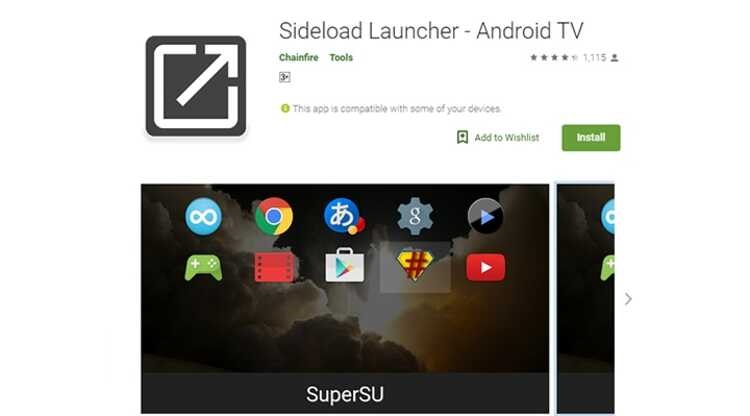
- After installing the browser, you will also need to install an app launcher application such as Sideload launcher to be able to access sideloaded applications.
- Open the browser, access web.whatsapp.com and select "Desktop View" in your browser. A QR code will appear.
- Enter WhatsApp from your mobile, select Linked devices and scan the QR code that appears on the TV.
- Ready, you'll be able to use WhatsApp from your TV via a web browser, very similar to how you do it on your computer.
Tips: Using a Bluetooth mouse or keyboard connected to your Android TV is much smoother. This allows for comfortable typing and navigation, which can be frustrating with the remote.
3. Install the WhatsApp APK directly on Android TV
If you're looking for a more complete experience with access to all features (though not all will be perfectly adapted to TV), you can install WhatsApp on Android TV using its APK file . This method, while slightly more advanced, allows you to link your account as an additional device without having to disconnect your mobile phone number. Furthermore, if you'd like to know which devices and phones are compatible, you can consult the specifications for the LeEco Le Max 2.
- Download the latest version of the WhatsApp APK from the official website or APK Mirror.
- Transfer the APK file to your TV using Google Drive, a USB flash drive, Send Files to TV, or even a web browser on the TV itself.
- Install a compatible file manager (such as File Commander or X-Plore) on your TV to locate and run the APK file.
- Enable installation from unknown sources in the Android TV security settings.
- Run the APK from the file manager. In some cases, the app may not appear directly in the main menu, so you'll need to install Sideload Launcher for quick access.
The latest version of WhatsApp automatically detects if your TV doesn't have a SIM card and offers you the option to link the device to your main WhatsApp account. This way, you won't have to log out of your phone and you can use WhatsApp on multiple devices, just like on tablets or computers.
Advantages of this method
- You can send and receive messages, share files, and even make video calls (although they can appear vertically).
- The TV becomes an additional device, not the main one, so you don't lose access from your phone.
The experience, however, may vary depending on the model and version of Android TV. Since the app is not designed for TV, some menus may not display correctly, and navigation requires an external mouse and keyboard.
Recommendations to improve the user experience
- Bluetooth Mouse and Keyboard: They will make it much easier to write messages, navigate between chats, and manage files or settings within the app.
- Sideload Launcher: Many apps installed in sideload mode don't appear on the home screen. This launcher displays them all.
- File Manager: Tools like File Commander or X-Plore will allow you to install and manage APKs on your TV.
- Privacy and security management: Remember to install APKs only from official sources to avoid potential security risks.
Limitations and possible problems
Although it's possible to install WhatsApp on your Android TV, there are certain restrictions you should be aware of:
- Since it's not optimized for TV, the layout and navigation can be awkward using only the remote.
- Notifications may not arrive in real time, especially if you close the app or switch tasks on your TV.
- In video calls, since the TV doesn't have a camera, only the other person's image will be displayed. If you connect a compatible webcam via USB, some features may be available, but the orientation may not be correct (often only vertical).
- The speed and performance of the app will depend on the power of your TV.
- It's a good idea to be extra careful when managing your privacy and log out if you're done using the TV.
Frequently asked questions about WhatsApp on Android TV
- Can messages be received and sent normally?
Yes, you'll be able to access your chats, send messages, and view media files, although browsing may be slower. - Can I use voice or video calls?
Voice and video calls can be initiated and received, but your TV must have a compatible microphone or camera. Generally, you'll only be able to see and hear, not send your own video. - Is it possible to use my phone's WhatsApp account on the TV without losing it?
Yes, thanks to the "device linking" system, you can use WhatsApp on multiple devices at the same time. - Can I install other messaging apps in the same way?
The process is similar for Telegram, Signal, and other apps that have APKs compatible with Android.
Alternatives for sharing WhatsApp content on TV
- Using WhatsApp Web on a PC connected to a TV via HDMI: Very useful for video calls and chat management, whether professional or in a group.
- Using Chromecast or mirroring apps: You can easily display any chat, photo, or video on your TV without installing anything special.
Enjoying WhatsApp on your Android TV is perfectly possible and can be a great convenience, especially if you frequently share content with friends or family. Although it requires a few additional steps for installation, the results may be worth it, especially if you have a Bluetooth mouse and keyboard. Always remember to download files only from official sources and manage your privacy properly. If you've already tried it, share your experience in the comments and help other users get the most out of their Android TV.

Table of Contents
- 1 Why install WhatsApp on an Android TV?
- 2 Prerequisites and important considerations
- 3 Methods to have WhatsApp on Android TV
- 4 Recommendations to improve the user experience
- 5 Limitations and possible problems
- 6 Frequently asked questions about WhatsApp on Android TV
- 7 Alternatives for sharing WhatsApp content on TV