

Often, WhatsApp users want to read messages without opening the conversation and without the sender knowing . Whether it's to avoid replying immediately, protect their privacy, or simply maintain control over the interaction, there are various techniques and tricks for reading WhatsApp messages without triggering read receipts or appearing online. This article offers a comprehensive and up-to-date guide with all available methods, their advantages, disadvantages, and usage tips , integrating relevant and current information from multiple authoritative sources and community experience.
Classic method: use the notification bar to read WhatsApp without opening chats

One of the simplest and most effective ways to read WhatsApp messages without opening the app or marking them as read is to use your phone's notification bar . On Android devices (and also on iOS, although with some differences), notifications show a preview of the received message directly at the top of the screen.
- Quick preview: When you receive a message, you can swipe down from the top of the screen to display the full notification. This way, you can read short messages in full or part of long messages.
- Reply without opening the app: On many mobile phones it is possible reply from the notification without accessing WhatsApp, which prevents you from appearing online and maintains privacy regarding reading.
- Limitations: This method only displays the latest messages, so you won't be able to read long conversations or view images or media files. If you receive many messages in a row, previews may be limited and condensed into a single notification.
- Be careful when interacting: If you tap on the notification, the app will open and the message will be marked as read, which notifies the sender.
To improve your experience, make sure you have WhatsApp notifications enabled in your device settings and within the app itself. Configure high-priority notifications so that messages are always prominently displayed.
WhatsApp Widgets: Read your messages directly on your home screen

Widgets are elements you can add to your Android phone's home screen that allow you to view key information from some apps directly, without having to open them. WhatsApp has a special widget that displays unread messages , perfect for reading without leaving a trace.
- Press and hold the home screen in a free space until the customization menu appears.
- Select 'Widgets' and look for the WhatsApp widget (usually a 4×1 or 4×2 widget appears).
- Drag it to the home screen and adjust it to the size needed for better viewing.
This widget displays text messages from all your conversations without marking them as read. You don't need to open the app, so your contact won't receive read receipts (blue double checkmarks), and you won't appear online. For more details, you can see how to set up privacy settings on Android and improve your privacy.
- Advantages: You can view multiple messages and conversations without any restrictions on the number of messages you see in the notification bar.
- Limits: You can only read text messages, no images or videos. If you tap on a conversation from the widget, WhatsApp will open and the messages will be marked as read.
- Enhanced Privacy: Ideal for checking messages without rushing and planning responses.
WhatsApp Web: another ally for reading messages discreetly
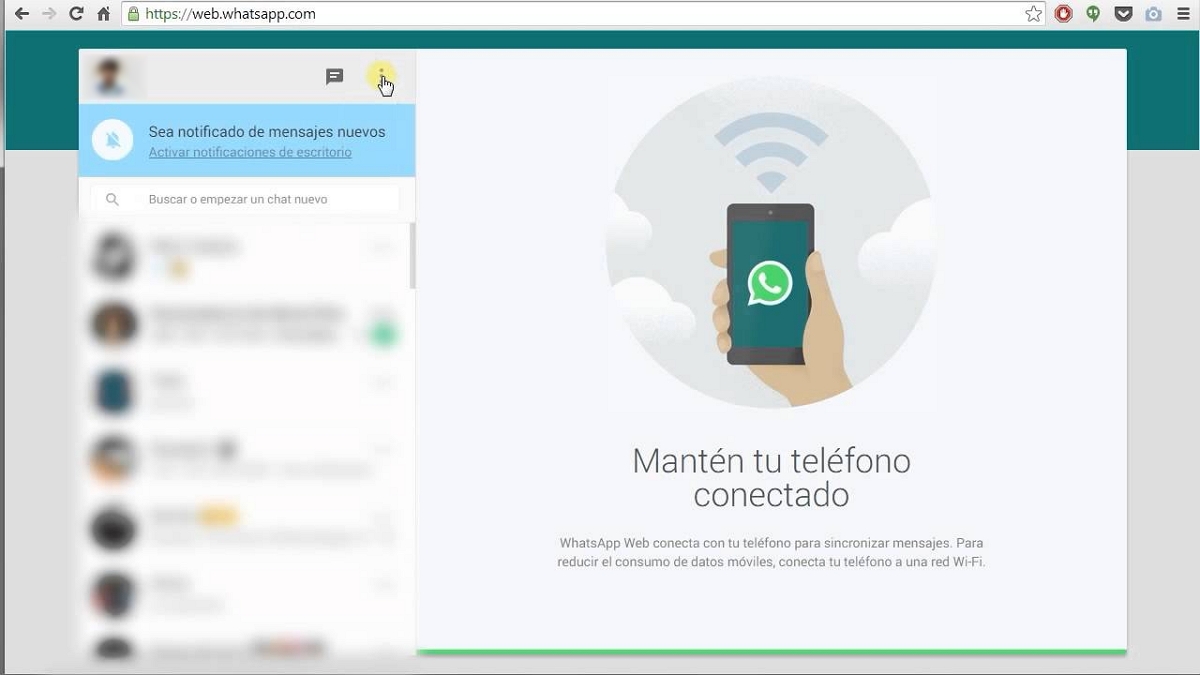
WhatsApp Web allows you to access your chats from any browser on your PC or tablet. Although opening a chat on the web marks messages as read, there is a way to check new messages without activating the blue double check mark:
- Hover over the chat (without clicking): A pop-up window will appear with the text of the last message received.
- Limitations: you can only see the last message received, not the full history or media files.
- Advantages: You can quickly check whether a message is urgent or not and decide when to respond from the mobile app or web.
- Warning: If you click on the chat, the messages will be marked as read.
This method is ideal for those who spend many hours in front of the computer and want to stay informed without others knowing if they've read the messages. You can also complement this technique with the trick to recover deleted chats if you need to access old messages.
Use Google Assistant to read WhatsApp messages without opening the app.

Google Assistant is a built-in tool on most Android devices that can read your WhatsApp messages aloud. Simply say, "Hey Google, read my WhatsApp messages," to receive a spoken summary without having to open the app. For added security, you can also learn how to protect your phone and maintain your privacy.
- Not marked as read: Messages remain with the gray double check.
- Optional answer: After reading the messages, the assistant can ask if you want to reply, all by voice.
- Configuration: Make sure your assistant has permission to access WhatsApp and your notifications.
- Additional advantages: You can listen to messages when you don't have your hands free or while driving.
This method is especially useful for maintaining privacy and security, as you can access the content without leaving a visual record in the app. Additionally, if you'd like to explore other assistance features, we recommend checking out how to take advantage of Google Translate's tricks.
Third-party apps to read WhatsApp messages invisibly

There are apps on Google Play designed to display WhatsApp notifications independently , allowing you to read messages without directly opening the official app. Some popular names are Shh and Notisave , which specialize in storing and displaying messages received from the notification tray.
- Operation: These apps collect all incoming notifications from WhatsApp (and other apps if you allow it) so you can read them at your leisure. No read receipt is sent to the sender.
- Advantages: They allow you to manage large volumes of messages, even if they have been deleted by the sender, since they usually retain the original content of the notification.
- Risks: Using third-party apps means giving them certain permissions (access to notifications). Always check the developer company, the requested permissions, and other users' reviews.Never grant unnecessary permissions like camera or location access if you only want notifications.
This method can be useful for advanced users with specific needs, but extreme caution should always be exercised to avoid compromising the privacy and security of your personal data.
Disabling read receipts: a definitive solution (but with nuances)
WhatsApp includes the option to disable read receipts (the famous two blue ticks). This prevents others from knowing if you've read their messages, but it also limits your ability to know if they've read yours. For more details, you can check how.
- Go to WhatsApp > Settings > Privacy.
- Disable the 'Read Receipts' option.
- Application: This option only affects individual messages. In group chats, read receipts are always enabled.
- Advantages: Stable and easy-to-implement solution, without relying on tricks or external apps.
- Disadvantages: You also won't be able to see if your messages have been read.
- Additional settings: To enhance your privacy, you can hide your last seen time, profile picture, and statuses.
It is recommended for those who value maximum privacy and do not need to confirm that their own messages have been read.
Airplane mode: Read full messages without leaving a trace (but temporarily)
Using airplane mode is one of the oldest tricks for reading WhatsApp messages without triggering the blue double check. It involves disconnecting all connections before opening the app.
- Receive notification of a new message.
- Activate airplane mode on your phone. This will cut off Wi-Fi and mobile data.
- Open WhatsApp and read the message (or the entire conversation).
- Completely close the application and remove the process from memory.
- Turn off airplane mode and reconnect to the Internet.
- Advantages: Allows you to read long conversations and view all received files without notification limitations.
- Disadvantages: When you reconnect to the Internet, if you haven't closed the app properly, WhatsApp may update and mark the message as read on the server.
- Recommendation: Only use it if you know how to use your phone. Make sure you close WhatsApp from the task manager before reconnecting.
This method is a temporary solution and may become less effective if WhatsApp implements changes to notification management or account synchronization. To learn more about useful settings, visit the section on key features you didn't know about Android N.
Using the WhatsApp search engine: a little-known but effective option
WhatsApp has a search tool that allows you to locate specific messages across all chats. For those looking to read messages without directly opening the conversation , this can work in both group and personal chats.
- Press the magnifying glass icon at the top of the main WhatsApp screen.
- Enter the keyword, group name or participant.
- View the preview of matching messages without entering the chat.
- Advantages: Useful for quick queries or to monitor what is being said in groups without the participants knowing.
- Limitations: It only allows you to view text messages, not media files. Selecting a message will open the conversation and mark it as read.
Additional tips for greater privacy on WhatsApp

- 3D Touch or Quick View (iPhone): If you're using a supported iPhone model, you can long-press on a chat to preview the content without opening it. You can also explore how to improve your privacy.
- Additional privacy settings: Adjust your profile to block who can see your last seen, your photo, your status, and who can add you to groups. This way, in addition to reading messages without leaving a trace, you'll strengthen your overall privacy.
- Be careful with shared devices: If you use WhatsApp Web on public computers, remember to log out and clear your history, as messages may remain cached in your browser. To do this, see how to do this. manage SMS and notifications on shared devices.
No matter your reason for wanting to hide read receipts on WhatsApp, these methods allow you to choose the technique that best suits you : from quick tricks in the notification bar to more advanced solutions with widgets, voice assistants, or in-app privacy settings. All the methods explained here have been tested, are explained simply, and are kept up-to-date so you can enjoy maximum privacy and control over your communications. Explore, experiment, and personalize your WhatsApp experience to communicate your way, without rushing or external pressure.

Table of Contents
- 1 Classic method: use the notification bar to read WhatsApp without opening chats
- 2 WhatsApp Widgets: Read your messages directly on your home screen
- 3 WhatsApp Web: another ally for reading messages discreetly
- 4 Use Google Assistant to read WhatsApp messages without opening the app.
- 5 Third-party apps to read WhatsApp messages invisibly
- 6 Disabling read receipts: a definitive solution (but with nuances)
- 7 Airplane mode: Read full messages without leaving a trace (but temporarily)
- 8 Using the WhatsApp search engine: a little-known but effective option
- 9 Additional tips for greater privacy on WhatsApp