

Are you a Huawei P10 user? If so, you'll surely want to take full advantage of every feature and function this powerful smartphone offers. The Huawei P10, as well as its Plus and Lite variants, stand out for their smooth performance, dual Leica camera, advanced customization, and a host of other options that often go unnoticed.
In this definitive guide, we present over 21 tips, tricks, and advanced features to help you get the most out of your Huawei P10. Here you'll find everything from methods for migrating your data and optimizing battery life to gesture shortcuts, interface customization, security, professional photography, and even hidden and advanced features that elevate your device experience. Ready to become a true expert?
Essential tips to get started with your Huawei P10
-
Clone and transfer everything from your old phone
To migrate absolutely all the data from your previous Android or iOS device, use Huawei's Phone Clone app . It guarantees the wireless transfer of contacts, SMS messages, photos, videos, music, settings, and even apps without needing an internet connection. Install it on both devices, select the sender and receiver, and follow the instructions for a seamless migration. This process also allows you to clone alarms, preferences, and even icon layouts so your new P10 is identical to the old one in terms of usability.
-
Set up two accounts on WhatsApp, Facebook, and other apps
The App Twin feature lets you have two separate sessions of WhatsApp, Facebook, Messenger, and other compatible apps on the same device. Access it in Settings > App Twin . Simply activate it, and two separate icons will appear for each app, distinguished by a small "2". It's ideal for separating work and personal life without needing a second phone.
-
Update the system and check the Android version
System updates improve performance, add features, and strengthen security. Go to Settings > System > Software update and force a check for new versions. You can also check your current Android and EMUI versions in Settings > About phone . To learn more about EMUI features, you can read this article about EMUI 10.
Many services and new features depend on keeping the system up-to-date, as well as compatibility with new apps and security patches that prevent vulnerabilities.


Battery, performance, and security optimization
-
Master energy saving and optimization modes
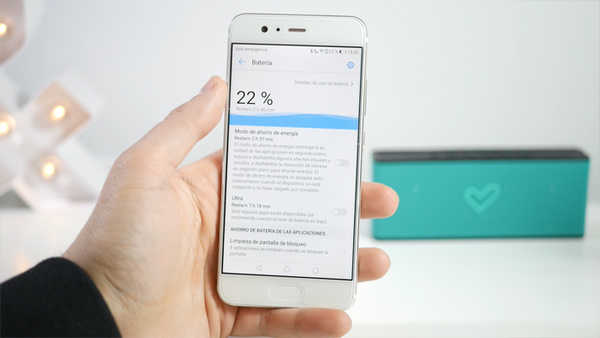
The Huawei P10 has three energy saving modes :
- Standard: Optimizes background tasks and reduces unnecessary consumption.
- Ultra: Only allows calls, SMS and basic apps, for emergencies.
- Optimize: Automatic suggestions for managing brightness, background apps, and other helpful tips to extend battery life.
You can access this from Settings > Battery , where you'll see consumption graphs, the most power-hungry apps, and options to limit processes. From this menu, you can also schedule automatic power on/off , ideal for saving energy at night or during predetermined work hours. If you want to learn more about managing EMUI features, we recommend checking out this link for tips and tricks for the Huawei P9 and P9 Lite.
-
Manage storage and free up space easily
Storage space fills up quickly with photos, videos, files, and apps. Use Settings > Storage > Storage Cleanup to remove temporary files, cache, and residual data. You can also install the Google Files app (formerly Files Go) for advanced management and suggestions for large, duplicate, or otherwise unnecessary files. The cleanup tool lets you delete old WhatsApp wallets, memes, audio files, outdated APKs, and much more.
-
Protect your privacy and security
The Huawei P10 adds advanced security features :
- Configure up to five different fingerprints from Settings > Fingerprint ID. Each fingerprint can unlock the device, serve as access to the Safe (private area in memory for photos, videos and documents) and validate access to protected apps.
- Activate Harassment filter (Settings > Security & Privacy) to block calls and messages from unwanted contacts. Calls and text messages from blocked numbers will no longer bother you.
- Manage the Safe to encrypt and save sensitive files (access from Security), protected by fingerprint or password.
- Use Private space y App Lock to create independent environments or block access to specific applications with a password or biometrics (ideal for social networks, banking, etc.).
-
Activate and customize the status and notification bar
From Settings > Notifications and status bar , you can adjust the display of battery percentage, carrier name, network speed, and notification types. You can also activate Do Not Disturb mode to block notifications during specific times and decide for each app whether it can display banners, icons, or custom vibrations.
Advanced customization and absolute control

-
personalize the Quick settings and the app dock
Swipe up from the top of the screen to open Quick Settings (WiFi, Bluetooth, flashlight, airplane mode, etc.). Tap the pencil icon to rearrange the icons , hide the ones you don't use, and place your favorite shortcuts at the top. You can also show or hide the app drawer in Settings > Home screen style , choosing between having all your apps scattered across the screen or grouped in a single menu.
-
You can choose between using the virtual capacitive buttons (Back, Home, Multitasking) or enabling the single button on the fingerprint sensor (gestures). From Settings > Navigation button :
- Short press: Back
- Long press: Home
- Swipe Sideways: Multitasking
- Swipe up: Google Now
If you often use your phone with one hand, activate One-Handed Mode in Settings > Smart assistance > One-handed UI . Then, by swiping from a bottom corner towards the center, the interface will shrink, making it easier to reach all the controls with just one thumb.
-
Activate the floating button or Quick Menu
The Quick Menu button (floating) is a circle that floats above the interface and provides quick access to Home, Back, recent apps, screen lock, and enhancements. Activate it from Settings > Smart assistance > Quick Menu button . You can resize and move it freely.
-
Complete aesthetic customization: Themes, widgets, text and transitions
The Huawei P10 lets you change themes, wallpapers, icons, and widgets . Long-press on an empty space on the home screen to access the menu for adding widgets, adjusting transitions, or changing the background. Additionally:
- Change the font size en Settings > Display > Font Size.
- Edit the color temperature y gloss en Settings > Display.
- Activate Simple mode for giant icons and texts (ideal for seniors or accessibility) in Settings > System > Simple Mode.
Gestures, shortcuts, and voice control

-
Screenshots and advanced screen recording
The P10 offers different methods for capturing the screen :
- Press simultaneously On + Volume Down.
- Pull down the notification bar and tap the icon Screenshot.
- Slide your knuckle on the screen or draw a S with the knuckle for scrolling screenshots (great for long conversations or full web pages).
- Record the screen by pressing at the same time On + Turn up the volume, or from the corresponding quick access.
-
Screen splitting and real multitasking
You can use two apps simultaneously in split-screen mode , which is especially useful for messaging and browsing or viewing documents. Simply open the first app, press and hold the multitasking button, select the second app, or use the gesture of drawing a horizontal line with your knuckle to activate split-screen mode.
-
Open apps by drawing their initial (Motion Control)
Quickly access WhatsApp, the camera, or any other app by drawing its initial with your knuckle on the lock screen (for example, "W" for WhatsApp, "C" for camera). Configure these gestures in Settings > Smart Assistance > Motion Control > Draw.
-
Voice control: completely hands-free
Activate Voice Commands to answer or reject calls, hang up, set an alarm, or dial a contact using only your voice. Configure it in Settings > Smart Assistance > Voice Command . You can also call a contact by pressing the volume down button and speaking their name.
-
Quick Launcher on the lock screen
Swipe up from the bottom of the lock screen for direct access to the camera, flashlight, voice recorder, calculator, alarm clock, and gallery, without having to unlock your phone. Perfect for quick, everyday actions.
Advanced photography and camera features
-
Take photos directly from the locked screen
Double -press the volume down button while your phone is locked to take a snapshot without unlocking the device. Perfect for capturing spontaneous moments.
-
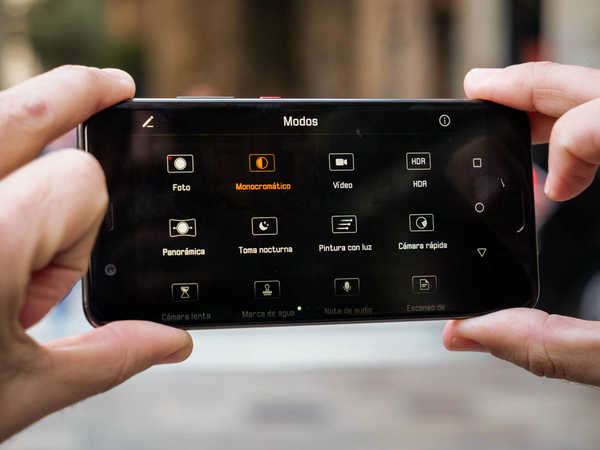
Professional monochrome and black and white mode
The P10's 20MP monochrome sensor is perfect for high-quality, artistic black and white photos. From the camera app, swipe left to right and select Black and White to use the dedicated sensor. You can apply effects to add drama to your images. For more in-depth photography features, you can check out the specifications of the Huawei Honor 8 Pro.
-
Portrait mode and bokeh effect
Activate Portrait Mode by tapping the silhouette icon in the camera app. It highlights faces and blurs the background (bokeh effect) for stunning selfies and professional portraits.
-
Take better photos in low light and HDR
In low light or high-contrast conditions, activate HDR mode from the camera's mode menu. This combines multiple shots to create a balanced and detailed photo, ideal for nighttime and backlit situations. You can use a tripod to improve results with long exposures.
-
Pro Mode: Adjust parameters manually
Slide the white arrow up on the shutter button to enter Pro Mode . Here you can adjust aperture, ISO, shutter speed, white balance, and manual focus to get the most out of the dual Leica lenses. For more information on mobile photography, see our article on tips and tricks for Android games and apps.
-
Apply Instagram-style filters before shooting
In the camera app, tap the three circles or dots to access nine creative filters in real time . Choose the one that best suits your style before taking the shot. Note that these filters are not available in portrait mode.
-
Use the camera's timer
If you want to take group selfies or include yourself in a photo, activate the timer . Swipe left in the camera app to access settings, find Timer , and select your desired time. This will give you time to position yourself and get into the picture.
-
Edit photos from the native app and use Splash
From the Gallery , select a photo and tap Edit . Enjoy a variety of tools: cropping, rotating, filters, color adjustment, and Splash (selective black and white) to preserve color in specific areas and create a spectacular artistic effect. You can also learn how to create videos with editing tools on Android.
-
Create video presentations with Quik
From your gallery, select multiple photos and choose Share > Quik . You can automatically create short videos with transitions, music, and effects —perfect for sharing memories on social media.
-
Upload 4K videos to YouTube: codec support
The P10 records in 4K, but YouTube and some other platforms may not recognize the H.265 codec. Use free tools like HandBrake on your PC to convert from H.265 to H.264 so you can share your videos without problems. For more tips on capturing and editing, check out [link to relevant resources].
Additional features, productivity tips, and tricks

-
Cast your P10 screen to your TV or PC
In Settings > Smart Assistance > Multi-screen, you can cast your smartphone's screen to a compatible TV or monitor (Miracast, Chromecast, Smart TV, or Windows 10 with wireless reception). For more detailed device management information, you can also consult the Samsung Galaxy Tab instructions.
-
Add custom widgets and backgrounds
Long press on an empty space on your home screen to access Widgets and add calendars, clocks, shortcuts to productivity apps, and utilities. Customize backgrounds and transitions to match your mood or aesthetic preferences.

Table of Contents
- 1 Essential tips to get started with your Huawei P10
- 2 Battery, performance, and security optimization
- 3 Advanced customization and absolute control
- 4 Gestures, shortcuts, and voice control
- 5 Advanced photography and camera features
- 5.1 Take photos directly from the locked screen
- 5.2 Professional monochrome and black and white mode
- 5.3 Portrait mode and bokeh effect
- 5.4 Take better photos in low light and HDR
- 5.5 Pro Mode: Adjust parameters manually
- 5.6 Apply Instagram-style filters before shooting
- 5.7 Use the camera's timer
- 5.8 Edit photos from the native app and use Splash
- 5.9 Create video presentations with Quik
- 5.10 Upload 4K videos to YouTube: codec support
- 6 Additional features, productivity tips, and tricks