

The Motorola Razr is one of the most popular smartphones in the Motorola family, valued for its innovative design and functionality. However, as with any Android device, there may come a time when you need to perform a factory reset due to performance issues, slowness, password locks, or errors after installing apps.
This article provides a complete and up-to-date guide on how to reset your Motorola Razr to its factory settings using various methods. We'll explain the differences between a soft reset and a hard reset , provide step-by-step instructions for each procedure, offer recommendations beforehand, and include relevant details from official Motorola manuals and reputable technical support sources.
Why reset the Motorola Razr to factory mode?
A factory reset is a solution that erases all personal data, installed applications, and settings, returning the device to its original state, just like the first day. It is recommended in cases of:
- Lock by password, PIN or unlock pattern forgotten
- Slow performance or other operating problems (crashes, reboots, app failures, viruses)
- Errors after installing or removing applications that affect the stability of the system
- Before selling or giving away your phone, to delete all personal data
This process is irreversible: all files, photos, messages, contacts, and apps will be deleted . Therefore, follow the previous recommendations to avoid losing important information.
Preparation before performing the Hard Reset
- Take a full backup from system settings or using Google Drive for your photos, contacts, documents, and important files.
- charge the battery at least 70% to avoid interruptions in the process.
- Remove the SIM card and SD card from the phone before starting the procedure.
- Write down accounts and passwords linked to the phone (Google, networks, apps) because they may be requested after the reset.
If you have Google account anti-theft protection enabled, make sure you know the login details before resetting, as it will be required upon device startup.
Ways to factory reset Motorola Razr

- Soft reset (forced restart)
- Reset via Settings Menu
- Hard Reset by key combination in Recovery mode
1. Soft Reset (Forced Reset)
Useful when the device is frozen but the touchscreen is responsive, or if the system is experiencing a minor issue. To do this:
- Simultaneously press the volume down button and the on / off button for at least 20 seconds.
- Your phone will turn off. Wait a few seconds and turn it back on normally.
This should restart your phone and resolve minor issues without erasing your personal data.
If you can access the phone's menus, this is the quickest and easiest method:
- Eliminate the SIM card y SD.
- Accesses Settings Menu on the home screen.
- Look for the option System o Privacy policy, and select Factory reset o Factory data reset.
- If the option appears, you can choose to delete only user data or also custom content like wallpapers and ringtones.
- Press on Reset phone and then confirm in Erase everything. Enter your password if requested.
The phone will automatically reboot and begin wiping data, restoring all default settings.
3. Hard Reset Motorola Razr Using Key Combination and Recovery Mode
This method is ideal if your phone won't turn on, won't respond, or if you can't remember your password:
- With the phone off, hold pressed the volume down button and the power button at the same time until you see the Motorola logo.
- Use the volume down button to select the option Recovery Mode and confirm with the power button.
- If the Android robot with a red exclamation markPress and hold the power button and quickly press the volume up button, then release both. This will display the recovery menu options.
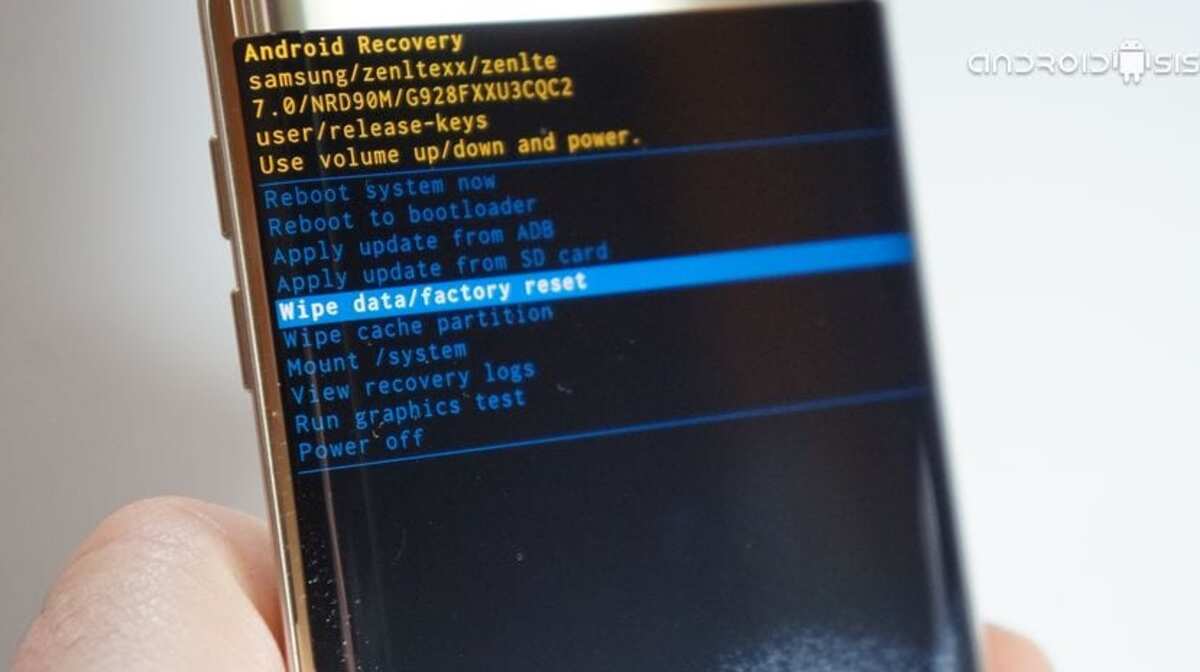
- Using the volume buttons, scroll to Wipe data / factory reset and select with the power button.
- The menu will show different options, choose User data + personalized content If you want to completely erase all data (photos, apps, messages, wallpapers, etc.), you can choose User data only if you want to keep some customized elements that came from the factory.
- Confirm by selecting YES – delete all user data and press the power button.
- The marketing process includesseveral phases that are reflected below: Factory Data Reset will start, wait a few minutes.
- When finished, select Reboot system now using the power button.
- The phone will reboot and start as new as it left the factory.
If your Razr doesn't finish restarting, press and hold the power button until the screen turns off, then turn it back on.
Additional tips after the reset

- When starting after a hard reset, you must set up the phone as newIf you restore apps, do so one at a time and test your phone after each installation to detect conflicting apps.
- You will have to enter the Google account previously associated to complete the initial setup.
- If you need to keep any apps or data, verify that the backup was restored successfully.
- If the hard reset was due to malware or a conflicting app, install apps only from the Play Store and keep your system updated.
Frequently Asked Questions About Resetting the Motorola Razr
- Do I void my warranty if I do a hard reset? No, factory reset is an official feature and does not affect your warranty.
- What happens if I forget my Google account? The device will be locked by the anti-theft protection system; you'll need to recover it to use it.
- How long does the process take? Usually less than 15 minutes, depending on the amount of data saved.
Additional Resources for Motorola Razr Users
- User manual and instructions for the Motorola Razr in Spanish
If you found this guide helpful, or if you've had to use this process, please share your experience in the comments or visit our Motorola – Android Forum to ask specific questions and help other users.
Resetting your Motorola Razr is a safe and recommended procedure when other methods fail. By carefully following these instructions, you'll get your device back to working as quickly as it came out of the factory, minimizing risks and keeping your important data protected with previous backups.

Table of Contents